

Budgets are a CORE part of how Worklog360 tracks and manages time, costs, and revenue across projects, clients, and internal work.
At their core, budgets act as containers for worklogs — gathering all related billable and non-billable time entries in one place, linked to a specific Jira project. This makes it easy to monitor progress, control costs, and prepare accurate invoices.
Budgets can be created for:
-
Client projects, such as Time & Material or Retainer contracts
-
Internal projects, where time and cost are strictly managed and tracked. (This feature is work in progress)
In short — Budgets are the foundation of Worklog360’s financial management. They connect time tracking, rate management, and invoicing into one streamlined workflow.
Once a budget is created and linked to a Jira project each new worklog will automatically be assigned to that budget if the worklog creation date is part of the budget timedate range.
Example
Let’s say you create a budget called “BudgetX”, linked to the Jira project “ProjectA”, covering the period October 1st to October 31st, with a budgeted amount of $1,000.
When a user logs time using the Worklog360 Log Time form, that worklog will be automatically assigned to “BudgetX” and given a dollar amount based on the billable rate defined in your app.
Note: Billable rates and dollar amounts are calculated only for billable hours. By default, if the Billable Hours setting is enabled, each worklog is considered billable unless specified otherwise.
Now, you might ask — what about worklogs created before the budget existed, or worklogs not logged through the Worklog360 form (for example, imported or created by another app)?
In these cases, go to Worklogs & Budget Administration, where you can bulk edit and adjust multiple worklog properties, such as:
-
Marking worklog hours as billable
-
Setting or updating billable rates and amounts
-
Assigning worklogs to the correct budget
Keep in mind that worklogs can only be assigned to a budget if their start date falls within the budget’s time range and they belong to the same Jira project as the budget.
Once everything is set up, you’ll be able to see a clear overview of all your budgets and their progress.
Don’t forget to click the “Calc” button for each budget to ensure that:
-
No worklogs are left unassigned or outside of a budget, and
-
All dollar amounts are correctly calculated and reflected in the budget totals.
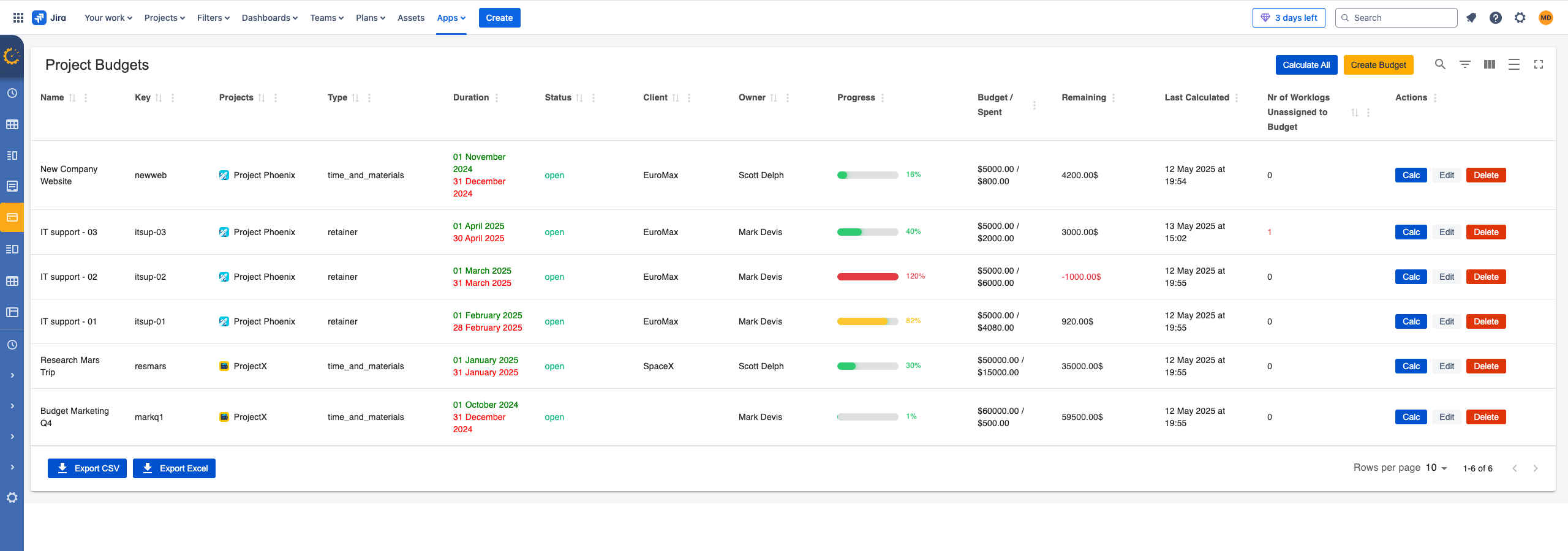
Timescale enables managers to track both time material and retainers budgets for your Jira projects within JIRA.
To start this lest first create our first budget:
-
Go to Timescale and Select Budgets menu from the side bar
-
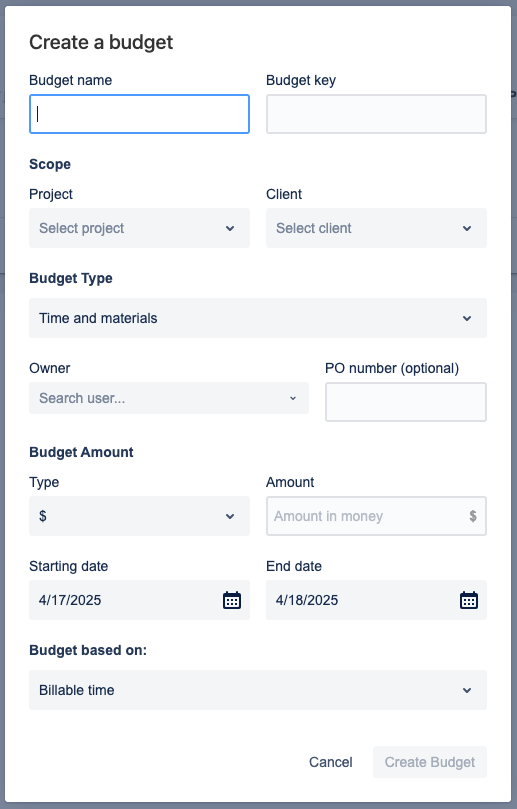
Click on the create Budget and fill in in the form as follows
-
-
Budget name: Name of budget
-
Budget Key: Enter a unique Key
-
Project: The jira project that the budget is for.
-
Client: The client that the budget is for.
-
Budget Type: There are 2 types:
-
Time and Material: If selected only one budget will be created with a start and end date.Billable logged time related to that period will be tracked against that budget.
-
Retainer: If selected multiple budgets can be created with the same time period and same amount. Billable logged time related to those periods will be tracked against the budgets.
-
-
Owner: Owner of the Budget
-
PO number : The PO number received by the client
-
Budget Type: Can be money type of hours type
-
Amount: The amount
-
Budget based on: Which hours and amounts will be taken into account for the budget burn
-
-
Time and Material:
-
Starting Date: Starting date of the Budget, in case of Time Material
-
End Date: End date of the Budget, in case of Time Material
-
-
Retainer Budget:
-
Recurring Interval: This specifies the length of each recurring budget - Monthly or Quarterly
-
Number of occurrences: The number of recurrent budgets that will be created
-