
Worklog360 allows users to create worklogs manually.
Creating Worklogs from a Work Item/Issue
-
Open any Jira Work Item/Issue
-
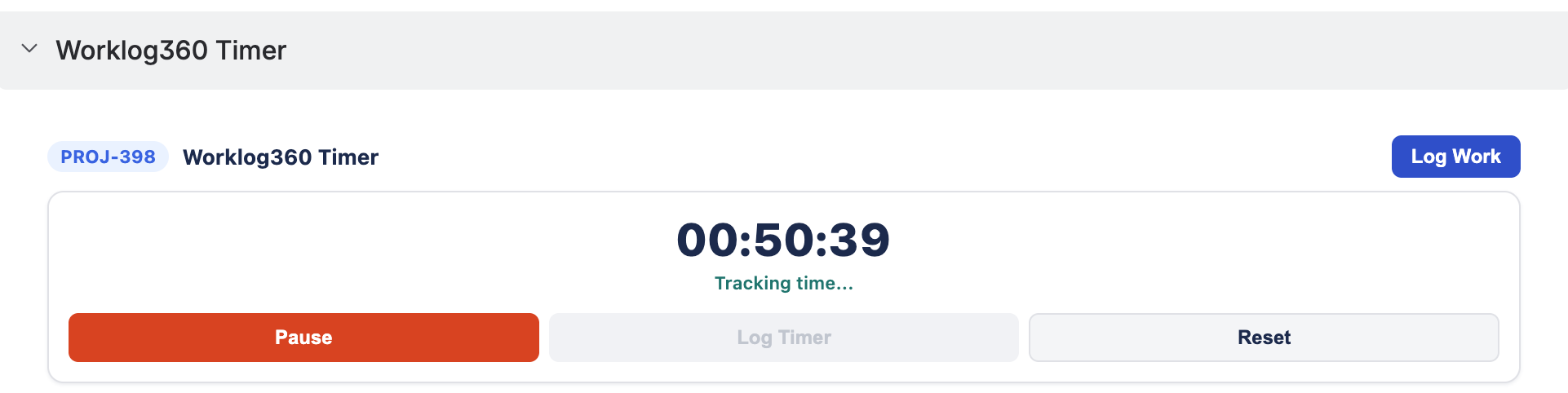
Find the timer section on the right side menu after Automations
-
Start a timer or Log Work button to directly enter time
or
-
Open any Jira Work Item/Issue, click the […] button on the top right
-
Then Select “Log work [Worklog360]”
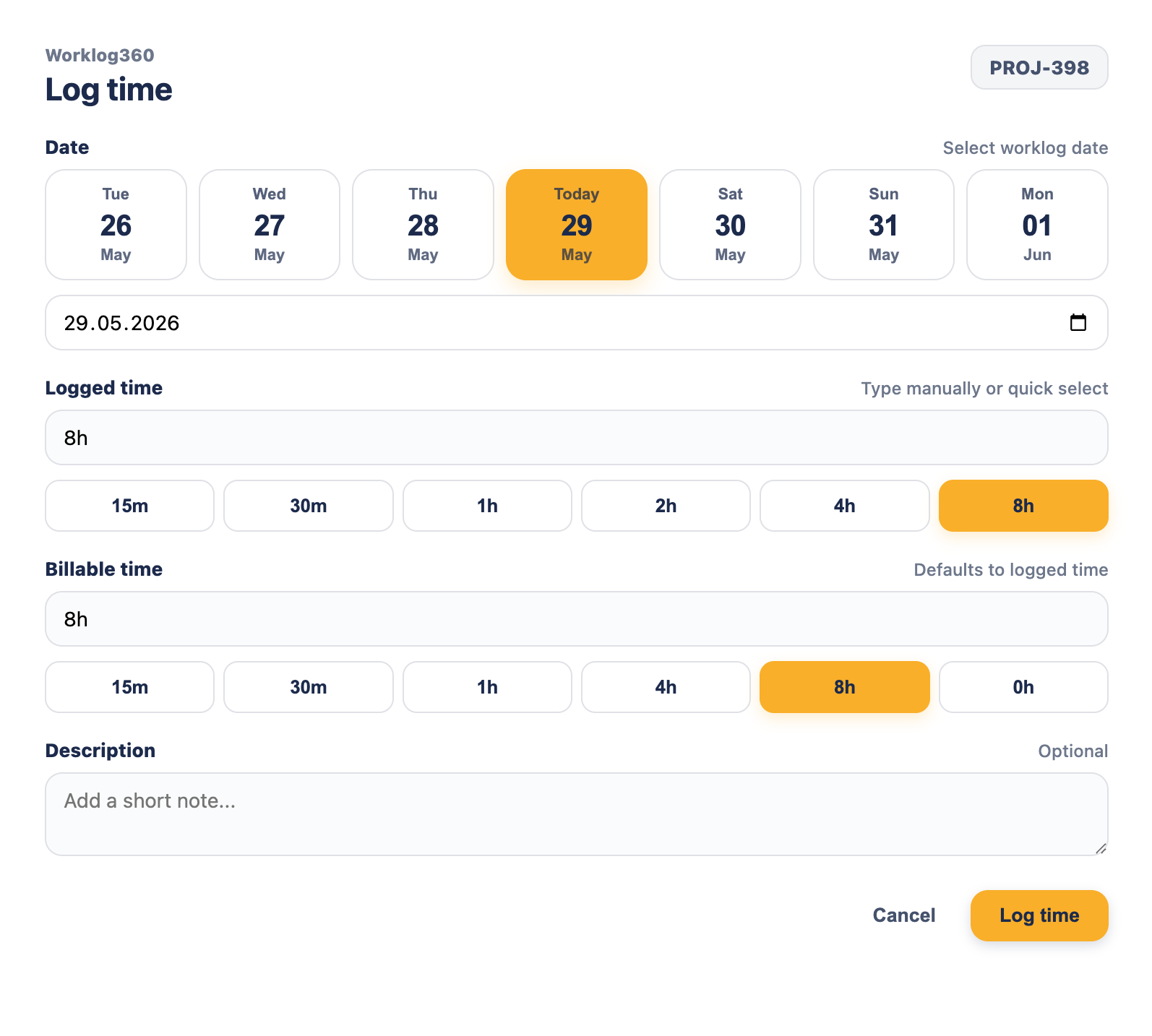
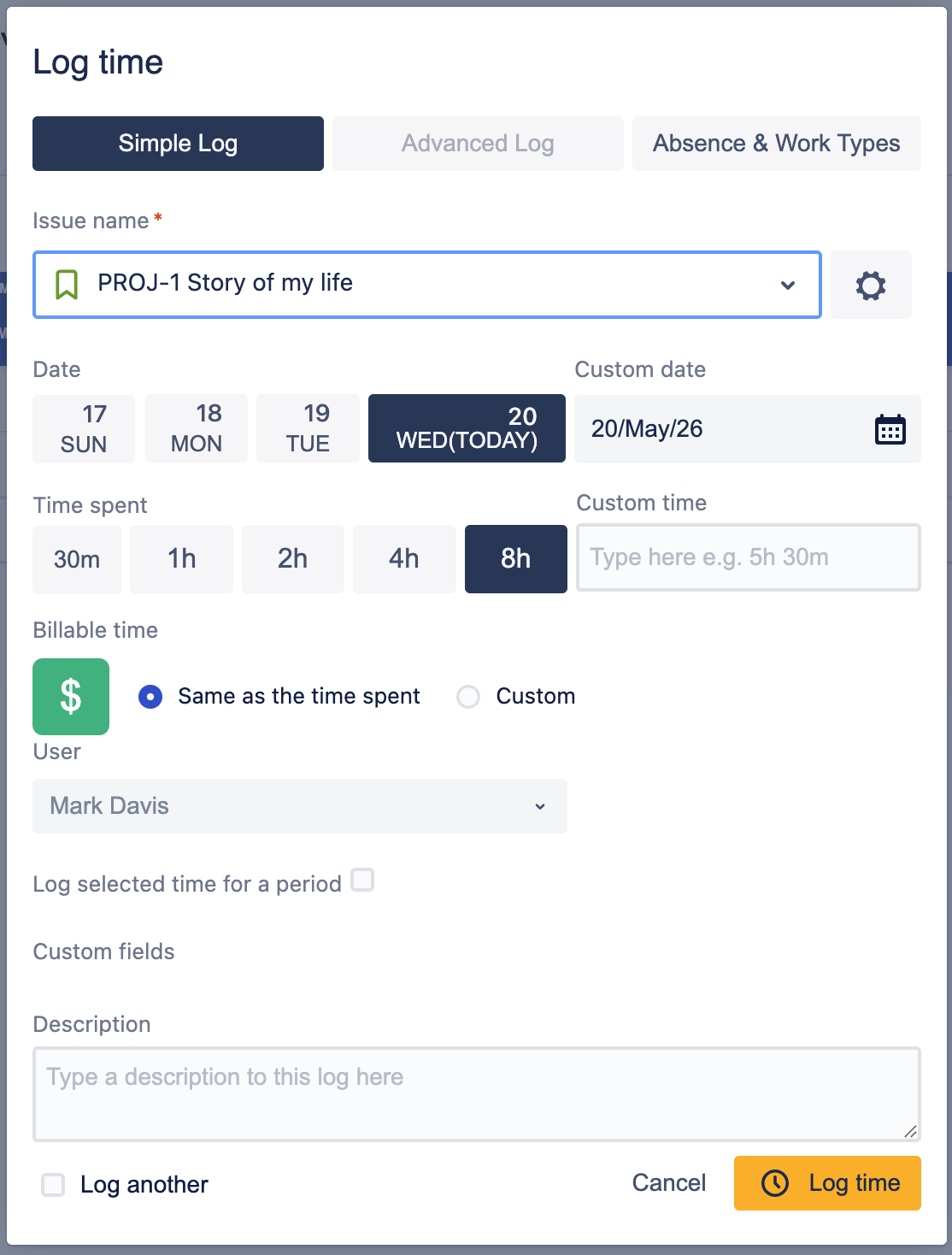
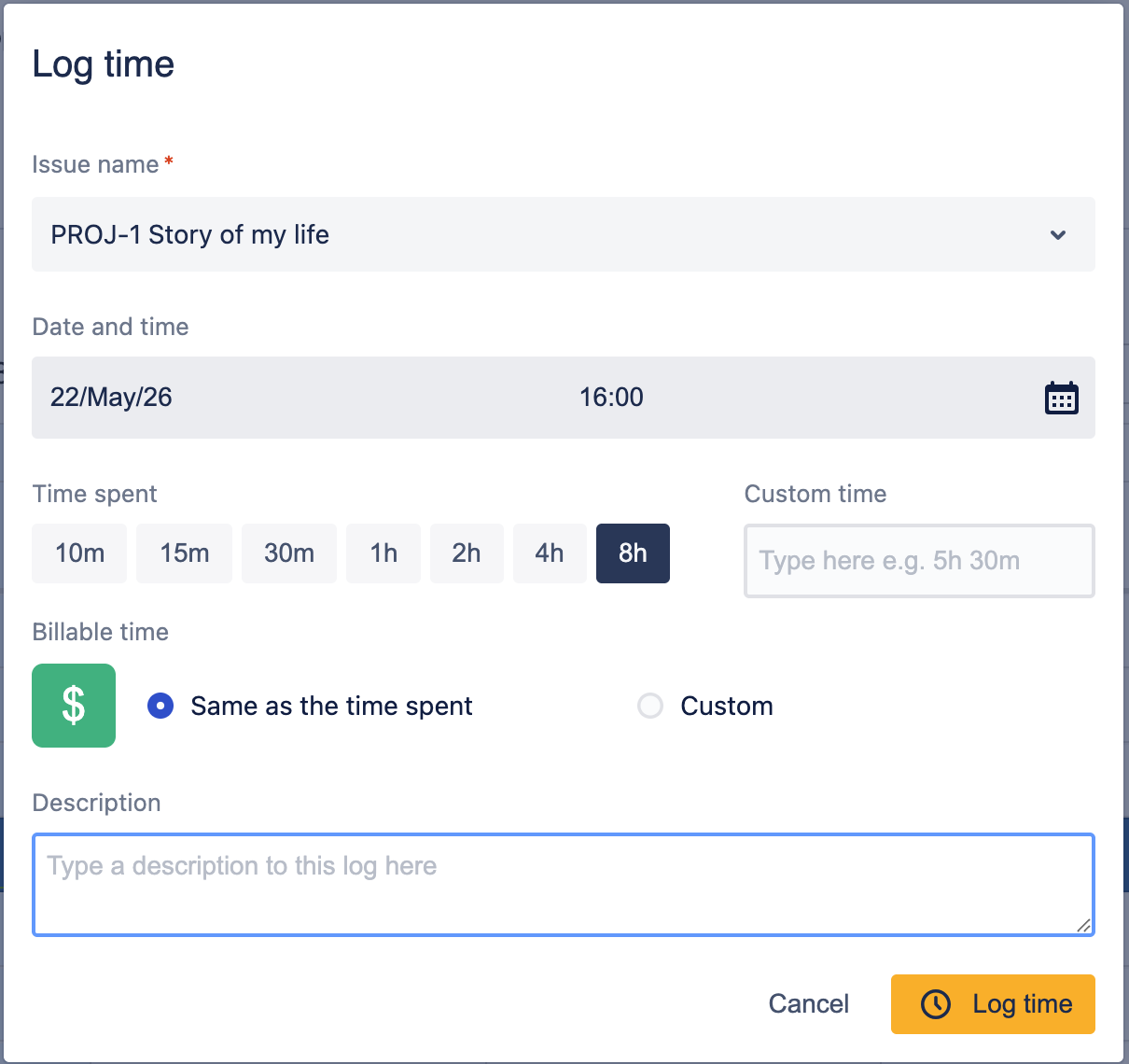
This opens a form with pre filed Work Item name and the user can enter spent and billable time plus additional fields (description, worklog attributes, etc.) for recording the worklog.
Creating Worklogs from the Timesheet
From your Timesheet, you can add a new worklogs for existing work items, edit existing worklogs, or add worklogs for Jira work items that are not yet listed on the timesheet.
To Add a Worklog from an Existing Timesheet Entry
-
Navigate to Apps > Worklog360 > Time > My Time > Timesheet.
-
Navigate to the date you want to add the worklog to for the appropriate Jira work item.
-
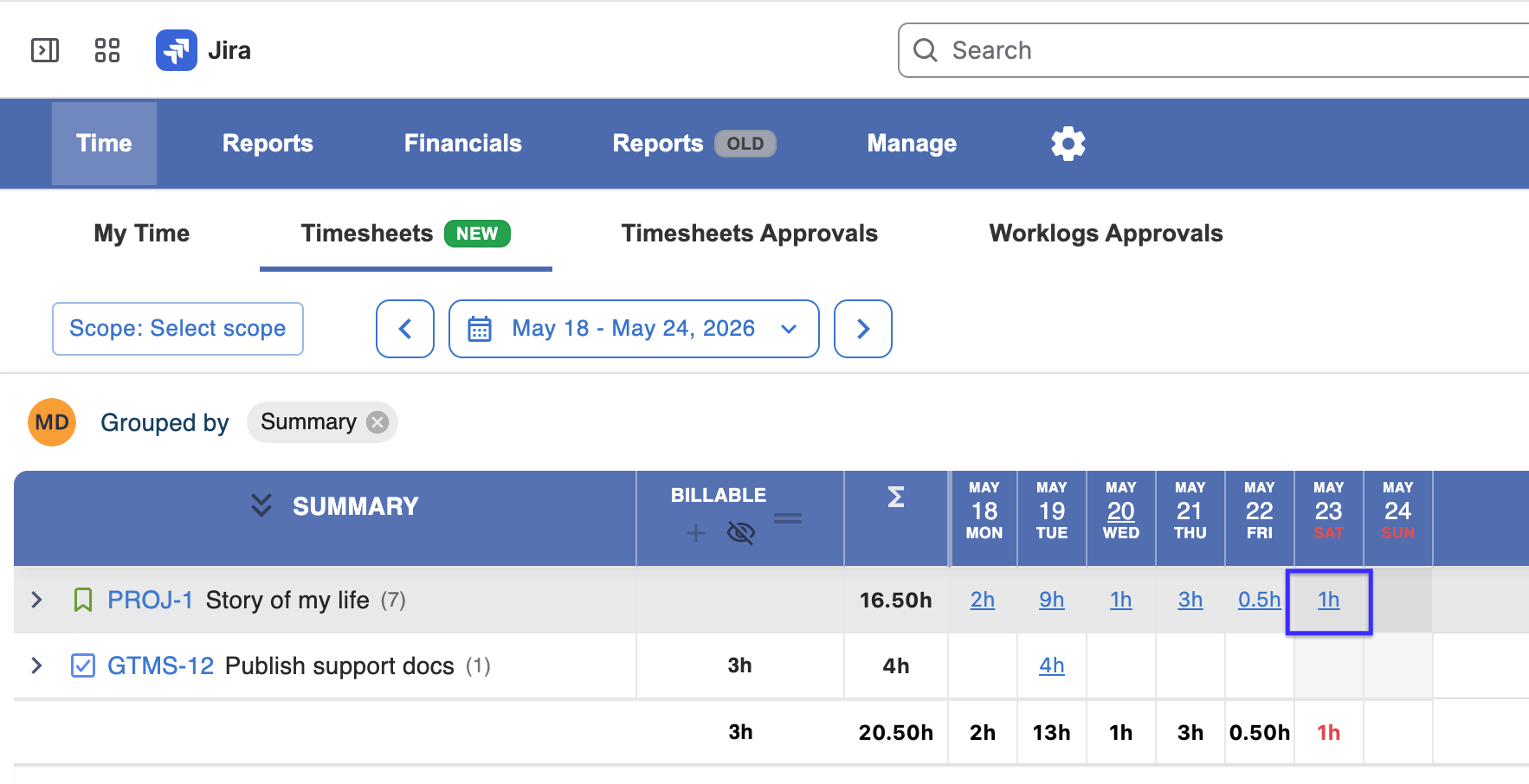
Go to an empty cell and click on it.
-
The worklog dialog will pop up with the Jira work item will be already selected.
-
Enter the time worked and the other details (description, worklog attributes, etc.), if required.
-
Click Log Time.
To Edit an Existing Timesheet Entry
-
Navigate to Apps > Worklog360 > Time > Timesheet.
-
Navigate to the date you want to add the worklog you want to edit.
-
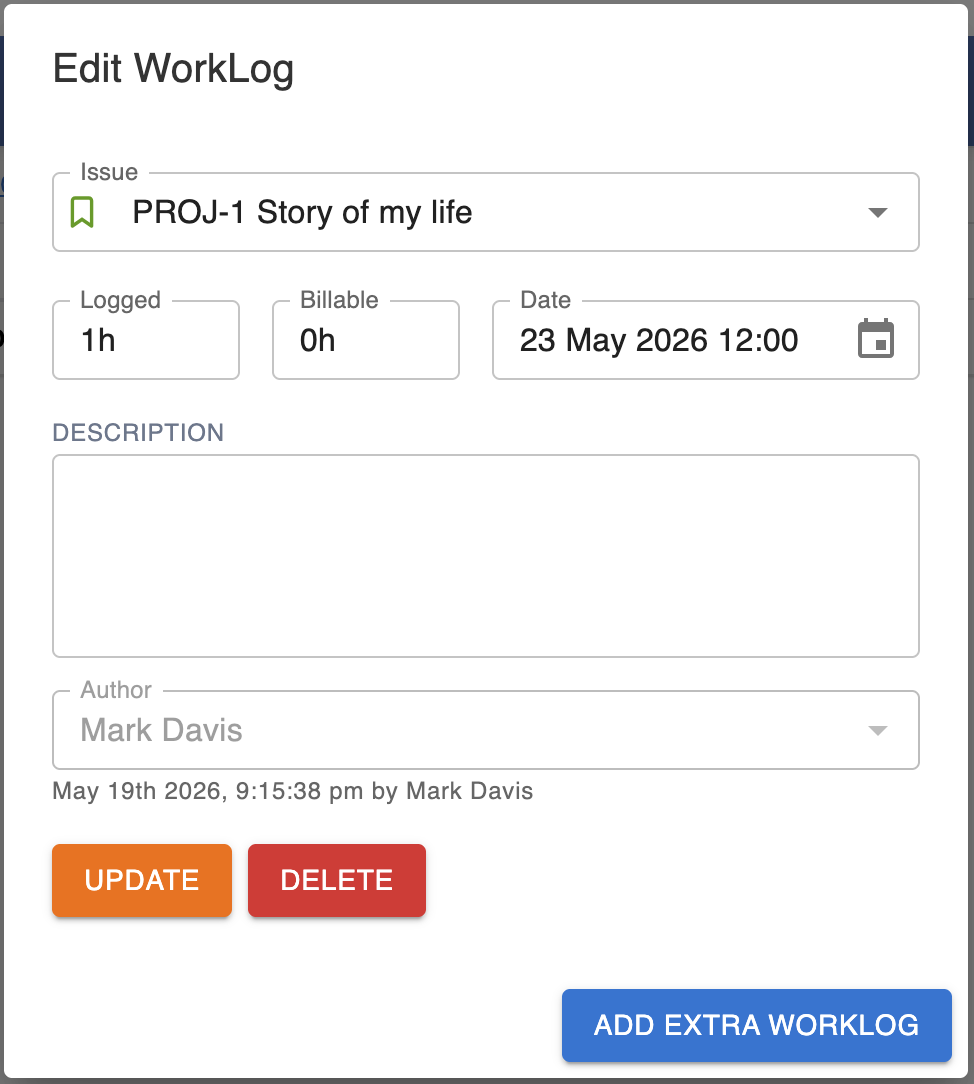
Click on any entered number to open a list of the work item’s worklogs for that day.
-
Make the edits and click Save.
To Add a Worklog for an Item that Is Not on the Timesheet
-
Navigate to Apps > Worklog360 > Time > Timesheet.
-
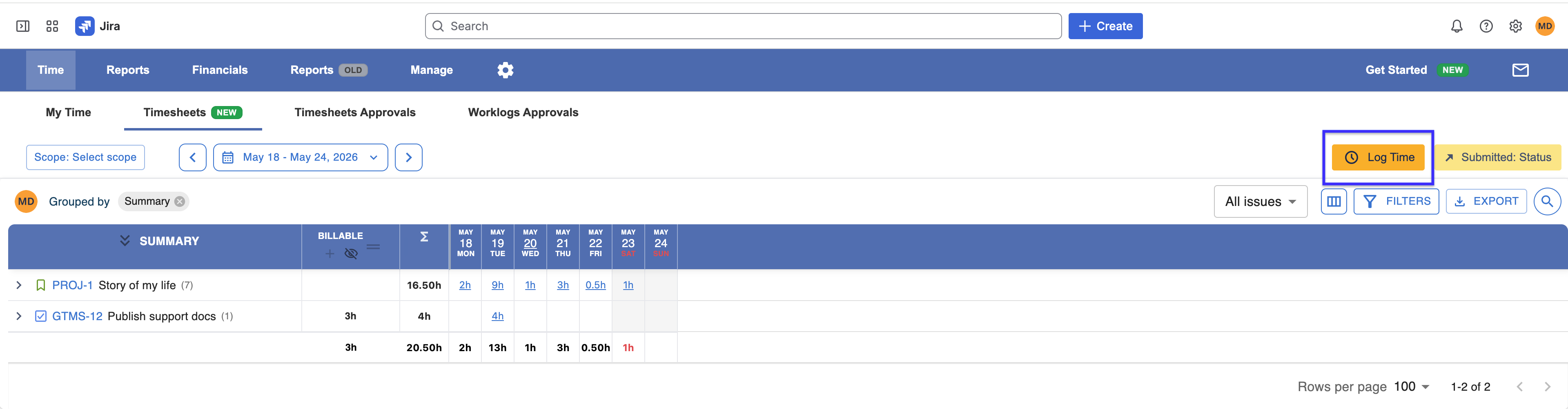
Click on the Add Worklog button in the upper right corner.
Opens image in full screenOpen
-
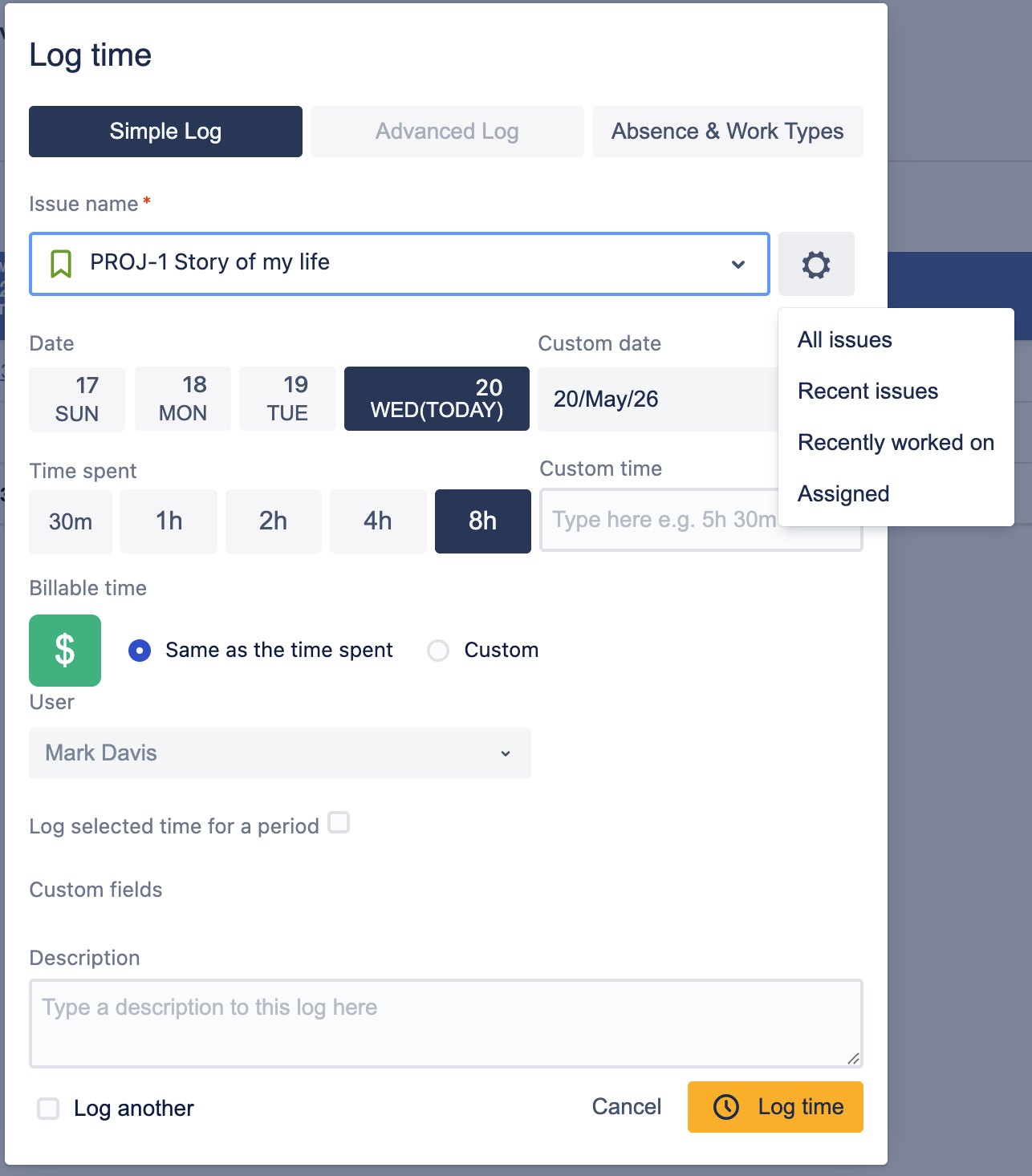
Use the dropdown to find the Jira work item, or begin typing the work item Summary. In Worklog360, you can also use the filter buttons (Recent Issues, Assigned) to narrow your search.
-
Add additional details (description, worklog attributes, etc.) in the dialog and click Log Time.
Creating Worklogs from the Calendar
Create a New Worklog from the Calendar View
You can create worklogs directly from the Calendar View:
-
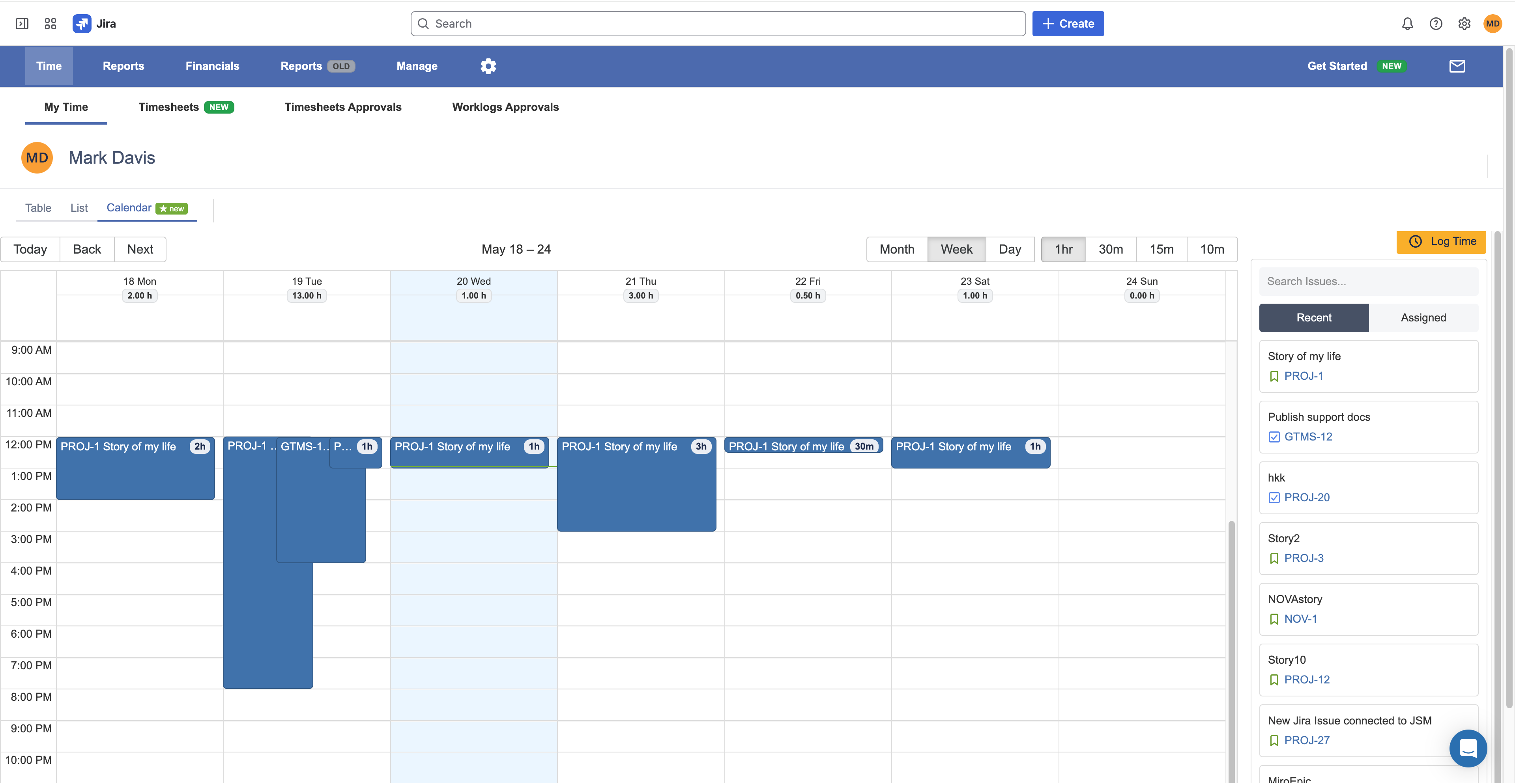
Navigate to Apps > Worklog360 > Time > My Time and select the Calendar tab.
-
Click and drag on the appropriate date/time slot to create the worklog.
-
Use the dropdown to find the Jira work item, or begin typing the work item Summary.
-
Enter additional details (description, worklog attributes, etc.) in the dialog and click Log Time.
Edit a Worklog from the Calendar View
The calendar view also provides various editing options. You can:
-
Drag and drop a worklog to edit the date/time
-
Delete worklogs
-
Edit existing worklogs
To Use Drag and Drop Editing
-
To change the date/time slot of a worklog, drag it and drop it in the appropriate time slot.