Fill in the Form
By default, Issue, date, and Time Spent are the only fields you need to fill in. Administrators can also make additional fields required, based on your organization's needs. For example, entering a description of the work done can be made mandatory. Mandatory fields are highlighted so that you can easily identify where you are required to enter information.
-
If you need to find the issue you worked on, click inside the Search box and type the issue name or ID.
-
To change the pre selected date, click the custom date box and select a new date.
-
To log time over a period of time, click the date box and select the Period check box. Select a start and end date.
Applying Search Filters
When searching for an issue to log time on, Timescale suggests issues based on your activities. The suggestions are displayed at the right side of the Issue name search field
Available filters:
-
Recent issues
-
Recently worked on
-
Assigned
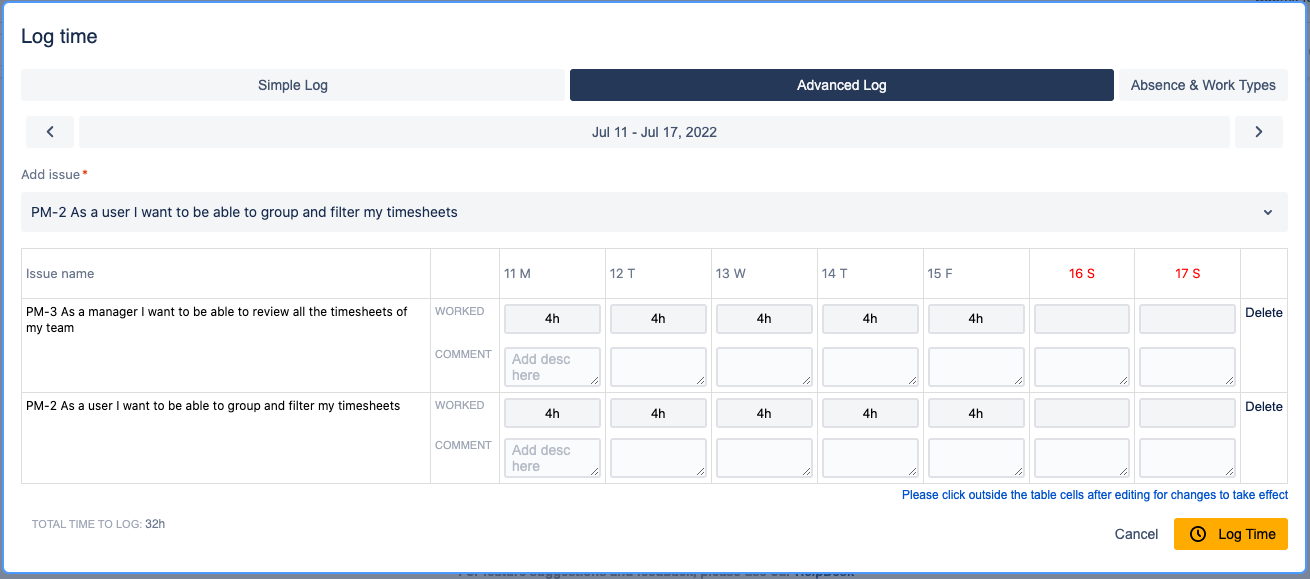
Logging time on multiple issues for a weekly period in one go.
Timescale allows users to log their weekly time for multiple issues in one go.
To do that:
-
Select Advance log
-
Start adding to the list the issues for which you wont to log time for the given week
-
Fill in the Time Spent and the rest of the fields if needed.