
The Worklogs tab provides the most granular view of your team’s time — displaying every individual worklog entry along with its project, sprint, and billing details.
This view is perfect for auditing, validating, and analyzing logged time across users, projects, and billing categories, clients, accounts ets.
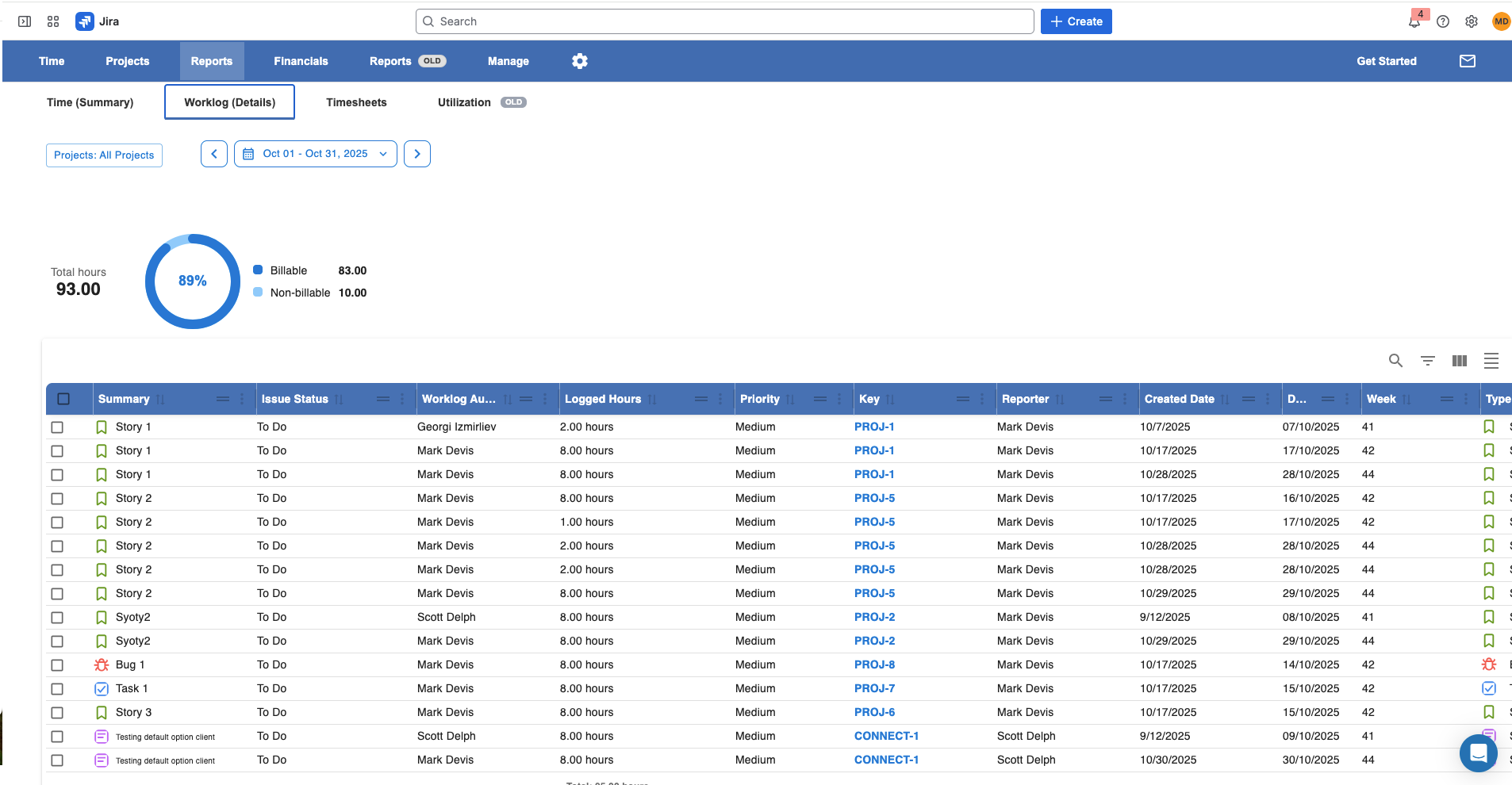
1. Main Filters
At the top of the report, you can refine your data using powerful filters:
-
Projects: Select one or multiple Jira projects to include in your view.
-
Time Range: Define the date range for which to display worklogs.
Tip: Changing filters instantly updates the chart and data table below.
2. Summary Chart
Just like the Projects tab, the top of the Worklogs report includes a summary visualization showing how time is distributed:
-
Total Logged Hours: The overall time logged within the selected period and filters.
-
Billable vs Non-Billable Hours: A circular chart clearly showing how much of that time is billable vs non-billable.
This gives you an instant overview of total effort and billing potential across your selected scope.
3. Detailed Worklogs Table
The table below provides a complete list of individual worklogs — giving you full visibility into every tracked time entry.
|
Column |
Description |
|---|---|
|
Date |
The date the worklog was created. |
|
User |
The team member who logged the time. |
|
Project |
The Jira project the worklog belongs to. |
|
Issue |
The Jira issue related to the worklog. |
|
Epic |
The epic linked to the issue, if applicable. |
|
Sprint |
The sprint associated with the issue at the time of logging. |
|
Worklog Summary |
The comment or description entered with the worklog. |
|
Logged Hours |
The number of hours logged. |
|
Billable Hours |
The number of those hours considered billable. |
|
Billable Rate / Amount |
Displays the rate and calculated amount based on rate hierarchy. |
|
Worklog Source |
Indicates whether the worklog was created in Worklog360 or an external system. |
|
Budget |
Shows which Worklog360 budget (if any) the worklog is assigned to. |
4. Customization Options
The Worklogs table is fully configurable to adapt to your reporting needs:
-
Add or remove columns — choose from a wide range of available data points such as “Component,” “Labels,” or “Fix Version.”
-
Group data by user, project, or issue.
-
Filter by billable/non-billable status, source, or date.
-
Sort by any column, such as logged hours or amount.
5. Export Options
You can easily export the detailed worklog list for external analysis or sharing:
-
CSV Export — ideal for quick data reviews or lightweight imports.
-
Excel Export — preserves formatting and supports deeper financial or capacity analysis.
Summary
The Worklogs tab provides unmatched visibility into your team’s daily activity, allowing you to:
-
Audit and verify individual time entries
-
Review billable vs non-billable distribution
-
Ensure worklogs are linked to the right issues, sprints, and budgets
-
Maintain accurate data for financial and performance reporting
It’s your go-to view for detailed time transparency and data accuracy across all tracked work.