
Viewing a Timesheet
To view a timesheet go to Apps > Worklog360 > Reports from the main Jira menu and click Timesheets.
The Timesheet in the Reports tab shows the timesheet of all users. You can define who should have access to the Reports tab in Permissions.
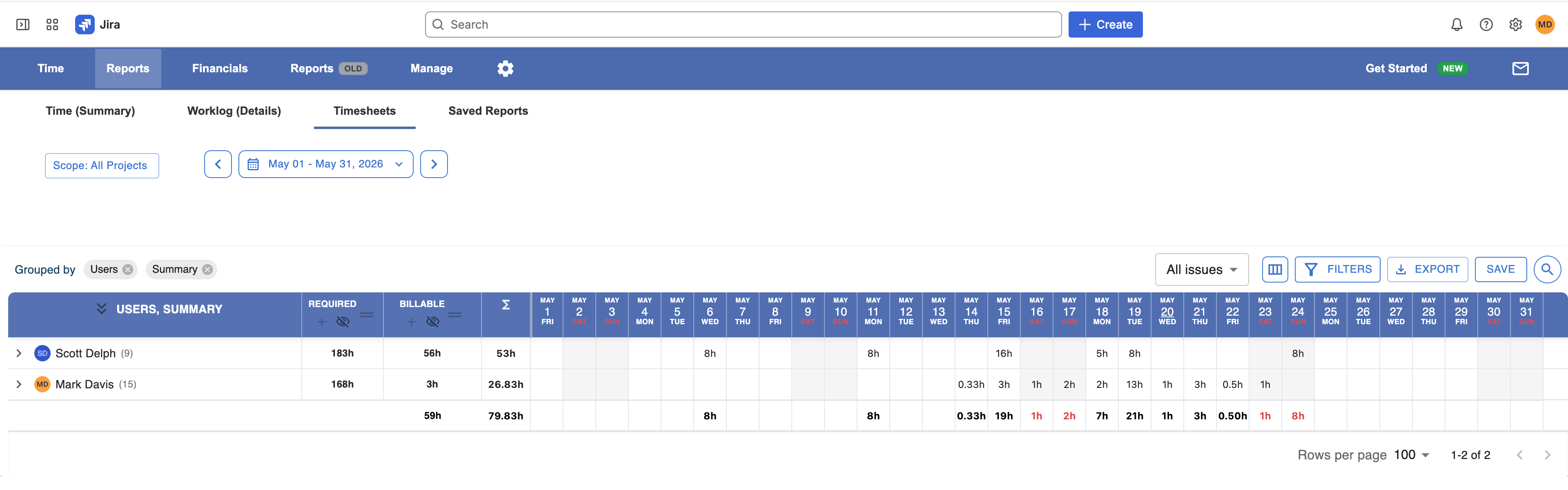
Configuring a Timesheet
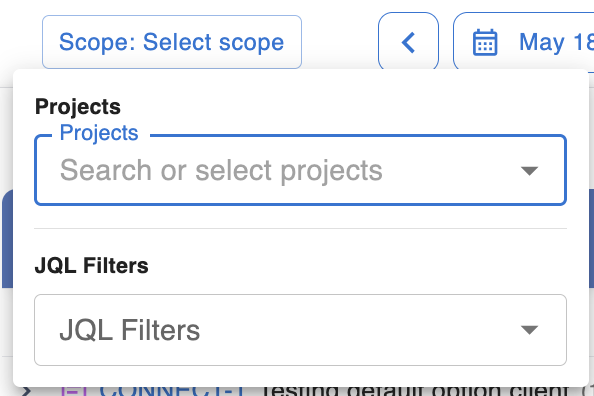
Selecting the Space(s)
The project / space dropdown lets you select one of more of your Jira spaces to be included in the timesheet.
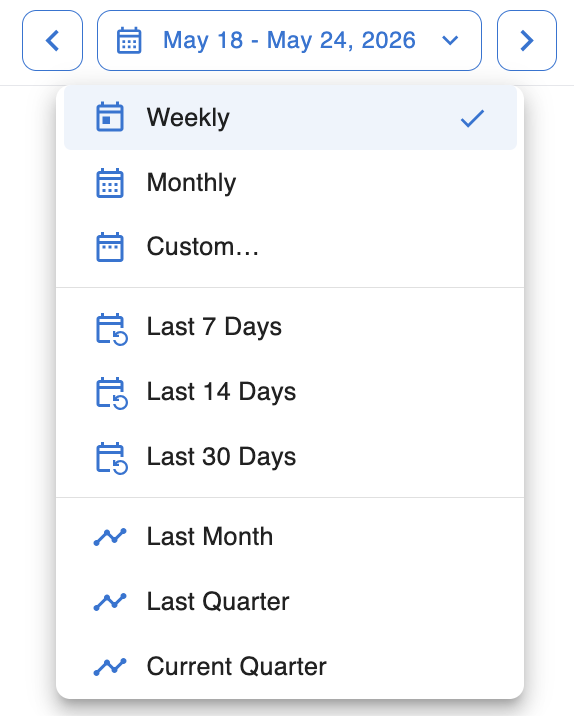
Setting the Date Range
You can select one of the predefined options or use the calendar to set the timeframe of the timesheet.
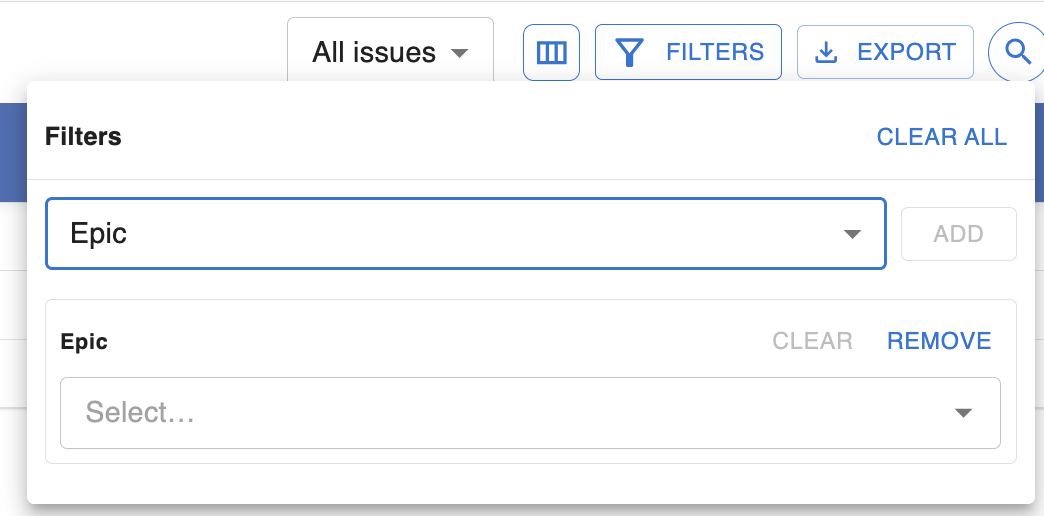
Filter & Breakdown Options
Once you have configured the date range and projects / spaces for the timesheet, use the filter and breakdown options to further define which worklogs will be included and how the data will be organized on the Timesheet.

Filter Options
|
Breakdown Options
|
|---|---|
|
|