
The Logging Time options determine the behavior for how users log their time - for example, whether it should be possible to log time without adding a Description, or being able to select a Account/Client account that will be associated with the worklog. You can configure these options for all users on your Worklog360 instance.
To configure the log time options:
-
Select Settings in the Worklog360 sidebar.
-
Select Time Tab.
-
Total weekly working hours - Default weekly hours for all users. Initially it is 40 hours. When set user will see that they need to log the changed amount in the MyTime time table.
-
Default view - This determines what will be the initial time range (of MyTime timesheet) when users enter in Worklog360
-
Default Account/Client when selecting a issue in the Log Work Form. This setting comes in to place only if the Rule: Enable cross project time logging against Accounts or Clients is enabled. Then is the setting you can select a issue custom single select Jira field which value will then be pre filled in the Time LogForm when the user selects an issue. This way the user will not need to manually enter the Account/Client value every time.
-
Additional issue custom fields information when selecting a issue in the Log Work Form. Here you can select a issue custom single select Jira field which value will be displayed in the
-
-
Select Rules Tab.
-
Make worklog comments mandatory - by default, users are not required to enter a description for each worklog). Select the checkbox to make the description when logging time mandatory.
Enable tracking time on none JIRA custom work types like sick, vacations, overtime, ets. - This checkbox only enables the user to log time on non Jira activities
-
Enable cross project time logging against Accounts or Clients - This enables users to associate a Worklog360 Accout or Client with a worklog of an issues. Once checked all users need to select as pre created Worklog360 Account or Client. Check how to set up Worklog360 Accounts/Clients.
-
Include jira agile data into reports like sprint, epics, story points (can slow down issues loading) - By enabling this you will be able to see extra data into your Worklog360 reports that will include Jira agile data. Doing this can slow down the loading of time reports.
-
Enable extra worklogs project permission. Make sure users are added first to (Worklog360 View all worklogs) permission group within Jira. This is optional setting. It is only used if you want to additionally limit who can view worklogs in your organization. If it is selected the Jira permission: “Worklog360 View all worklogs” will be taken into account. This permission exist in Jira issues permission schema. It is automatically added when Worklog360 app is installed in your instance.
-
-
Select Billable Hours Tab.
-
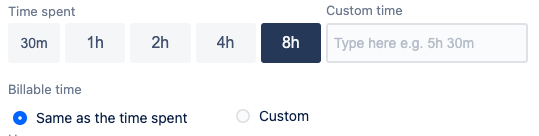
Enable tracking billable hours. This enables the user to select how many of the logged hours within the Timelog Form should be marked billable hours. By default billable hours will be the same as logged hours. If user want to change that he will need to enter custom billable hours
-