
This guide explains when and how billable hours can be adjusted in Worklog360.
Adjusting billable hours allows you to correct billing data without changing the original logged time.
When should billable hours be adjusted?
Billable hours are usually correct by default.
Adjustments are typically needed when:
-
Only part of the logged work is billable
-
A worklog was logged correctly, but billed incorrectly
-
A rate or billing rule needs to be applied consistently
-
Data needs to be corrected before invoicing
📌 Logged time always remains unchanged — only billable hours are adjusted.
Ways to adjust billable hours
Billable hours can be adjusted in two ways:
-
Single worklog edit
-
Bulk edit of multiple worklogs
Method 1: Adjust a single worklog
Use this when you need to correct one specific worklog.
Where to click
-
Go to Worklog360 → Reports → Worklogs (Details)
-
Find the worklog you want to adjust
-
Click directly on the worklog row
-
Edit the Billable hours section
-
Save the changes
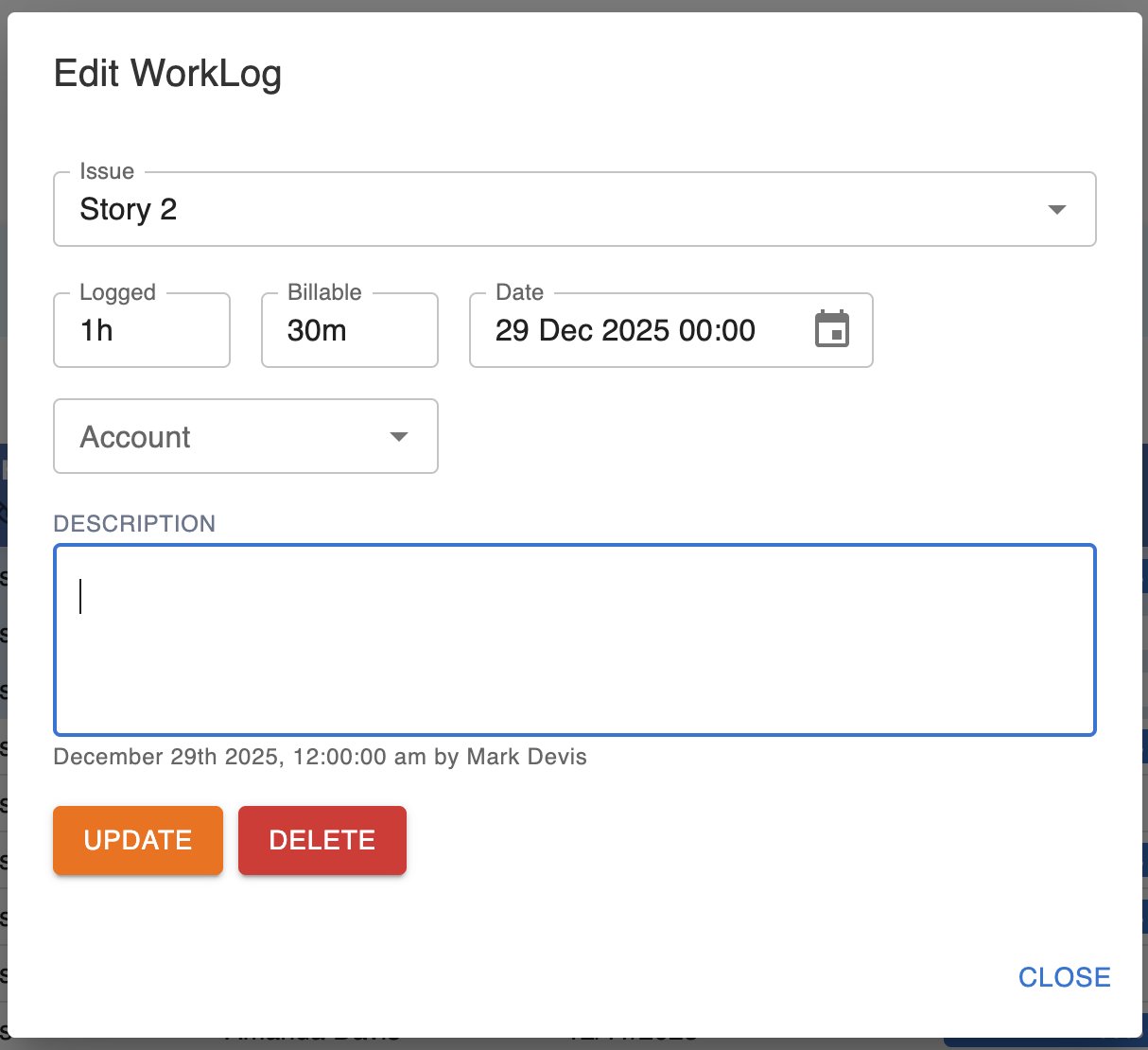
This method is best for small, one-off corrections.
Method 2: Adjust billable hours in bulk
Use bulk edit when you need to correct multiple worklogs at once.
Where to click
-
Go to Reports → Worklogs (Details)
-
Filter the worklogs you want to adjust
-
Select multiple worklogs
-
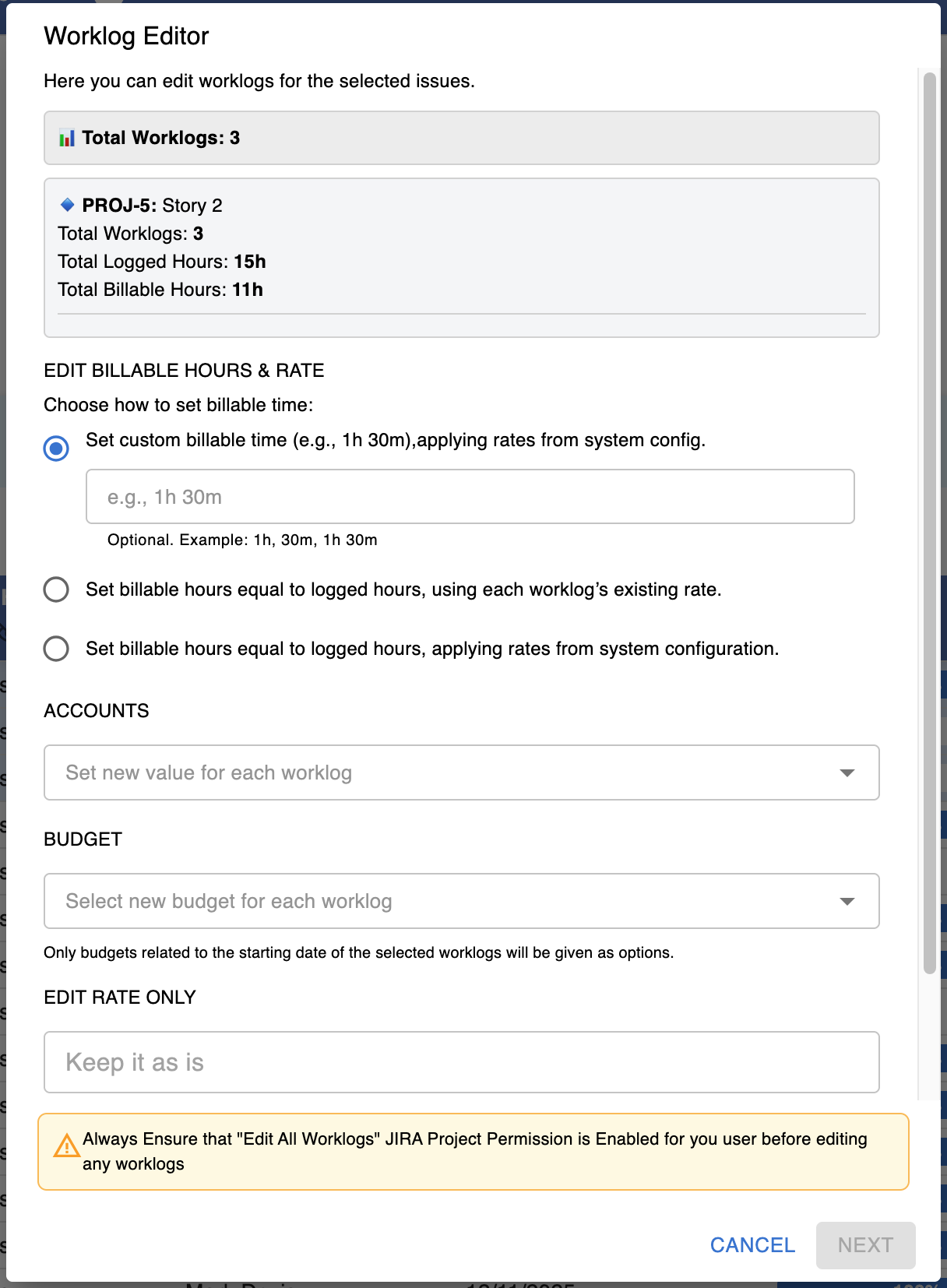
Click Bulk edit
Bulk edit options explained
When using bulk edit, you can choose one of the following options:
1️⃣ Set custom billable time
(Applies rates from system configuration)
Use this option to manually define billable hours.
Example inputs:
-
1h -
30m -
1h 30m
📌 Use this when:
-
Only part of the work should be billed
-
You need a fixed billable amount regardless of logged time
2️⃣ Set billable hours equal to logged hours
(Using each worklog’s existing rate)
This option restores billable hours to fully match logged time.
📌 Use this when:
-
Worklogs were accidentally marked as non-billable
-
Rates on the worklogs are already correct
3️⃣ Set billable hours equal to logged hours
(Applying rates from system configuration)
This option also makes billable hours match logged time, but:
-
Ignores existing worklog rates
-
Applies rates from the current system configuration
📌 Use this when:
-
Rates have changed
-
You want consistent billing across all selected worklogs
After adjusting billable hours
Once changes are applied:
-
Reports update immediately
-
Billable ratios and amounts are recalculated
-
Invoices created afterward will reflect the updated data
Best practices for managers and admins
💡 Adjust billable hours before approving timesheets or creating invoices.
💡 Use bulk edit for consistency; use single edits sparingly.
💡 Avoid frequent corrections — repeated adjustments may indicate a configuration issue.