
[For Leads/Managers]
This guide explains how to review all logged time across your team using the Reports section in Worklog360.
With Worklog360 reports, you can:
-
See who logged time
-
Understand where time was spent
-
Review billable vs non-billable hours
-
Drill down from summaries to individual worklogs
Step 1: Open Reports
In the Worklog360 menu, go to Reports.
The Reports section contains three main views:
-
Time (Summary)
-
Worklogs (Details)
-
Timesheets
Each view answers a different management question.
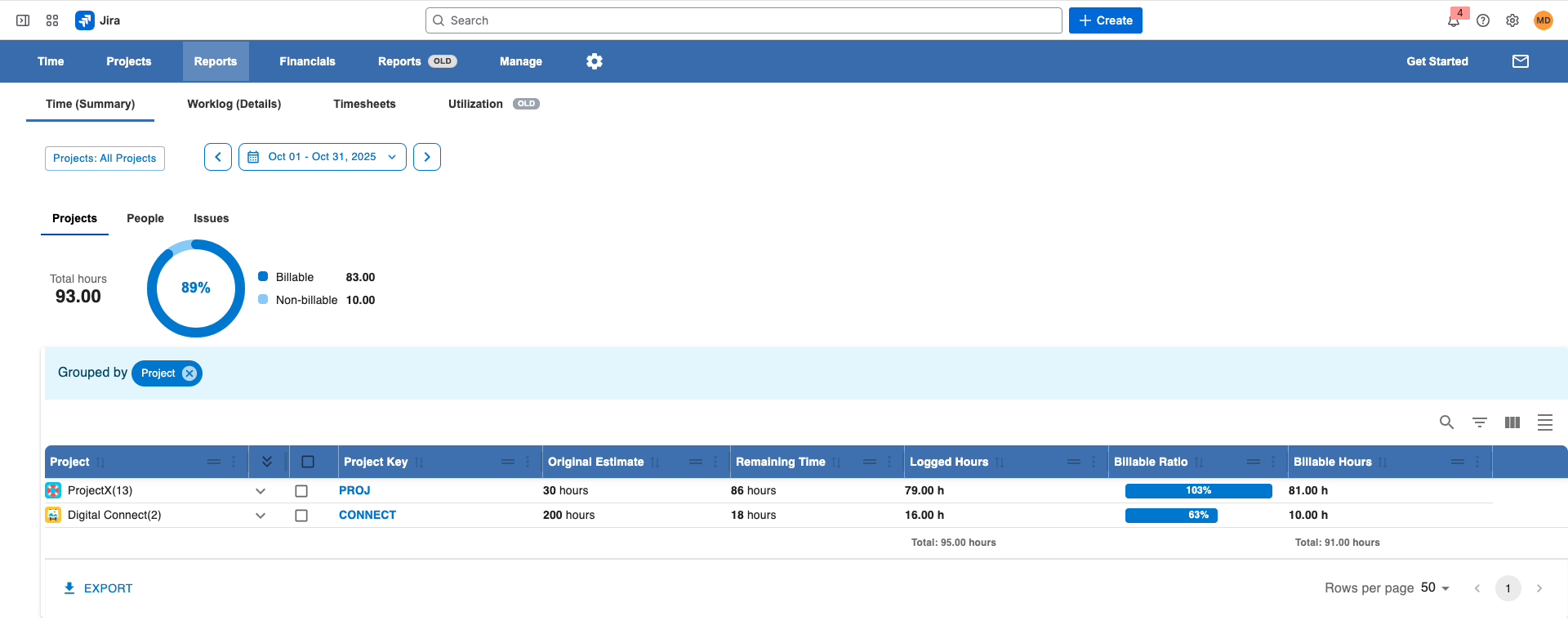
Time (Summary): High-level overview
Use Time (Summary) when you want a quick overview of how time is distributed.
What you can see
-
Total logged time grouped by:
-
Project
-
User (Perfect to track utilizations)
-
Issue
-
Account
-
-
A selected time range
-
A selected scope:
-
One or more Jira projects
-
A Jira filter
-
All projects
-
📌 This view is ideal for answering:
“Where is our time going?”
Worklogs (Details): Full transparency
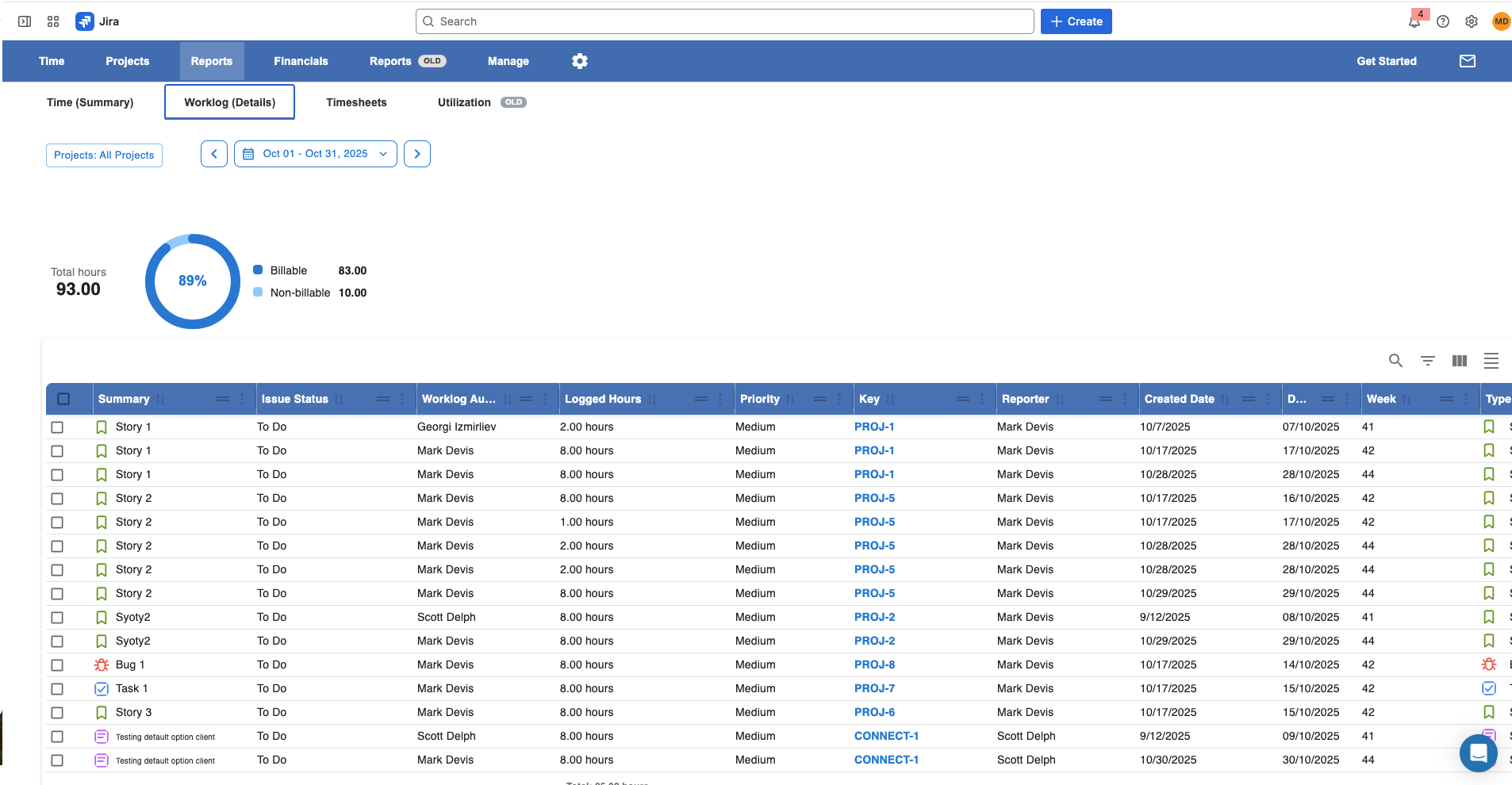
Use Worklogs (Details) when you need to inspect individual worklogs.
What you can see
-
A list of all worklogs for the selected time range and scope
-
Each worklog as a single row
Powerful filtering & columns
You can:
-
Add any Jira field or custom field as a column
-
Add custom worklog fields (e.g. Team, Rate, Amounts and many more)
-
Filter by any field
-
Save
-
Charts
-
Export the data
📌 This view is ideal for answering:
“What exactly was logged, by whom, and why?”
Timesheets: Team-level accountability
Use Timesheets when you want to review time in a timesheet-style layout, especially per user.
What you can see
When grouped by User, you can clearly see:
-
Required hours
-
Logged hours
-
Billable hours
This makes it easy to spot:
-
Missing or under-logged time
-
Differences between logged and billable hours
Like other views, you can:
-
Filter and group data
-
Save views
-
Export results
📌 This view is ideal for answering:
“Is my team logging the expected amount of time?”
Which view should I use?
|
If you want to… |
Use this view |
|---|---|
|
Get a quick overview |
Time (Summary) |
|
Inspect individual entries |
Worklogs (Details) |
|
Review per-user effort |
Timesheets |
Tips for managers
💡 Start with Time (Summary) to understand trends, then drill down into Worklogs (Details) if something looks off.
💡 Use Timesheets to quickly identify missing or under-logged time before approvals or invoicing.