
This guide explains how to export invoices from Worklog360 and how invoice data can be used in external accounting systems.
When invoices can be exported
Invoices can be exported only after they are finalized.
Once an invoice is finalized:
-
Its data is locked
-
Included worklogs are marked as invoiced
-
The invoice becomes available for export
Available export formats
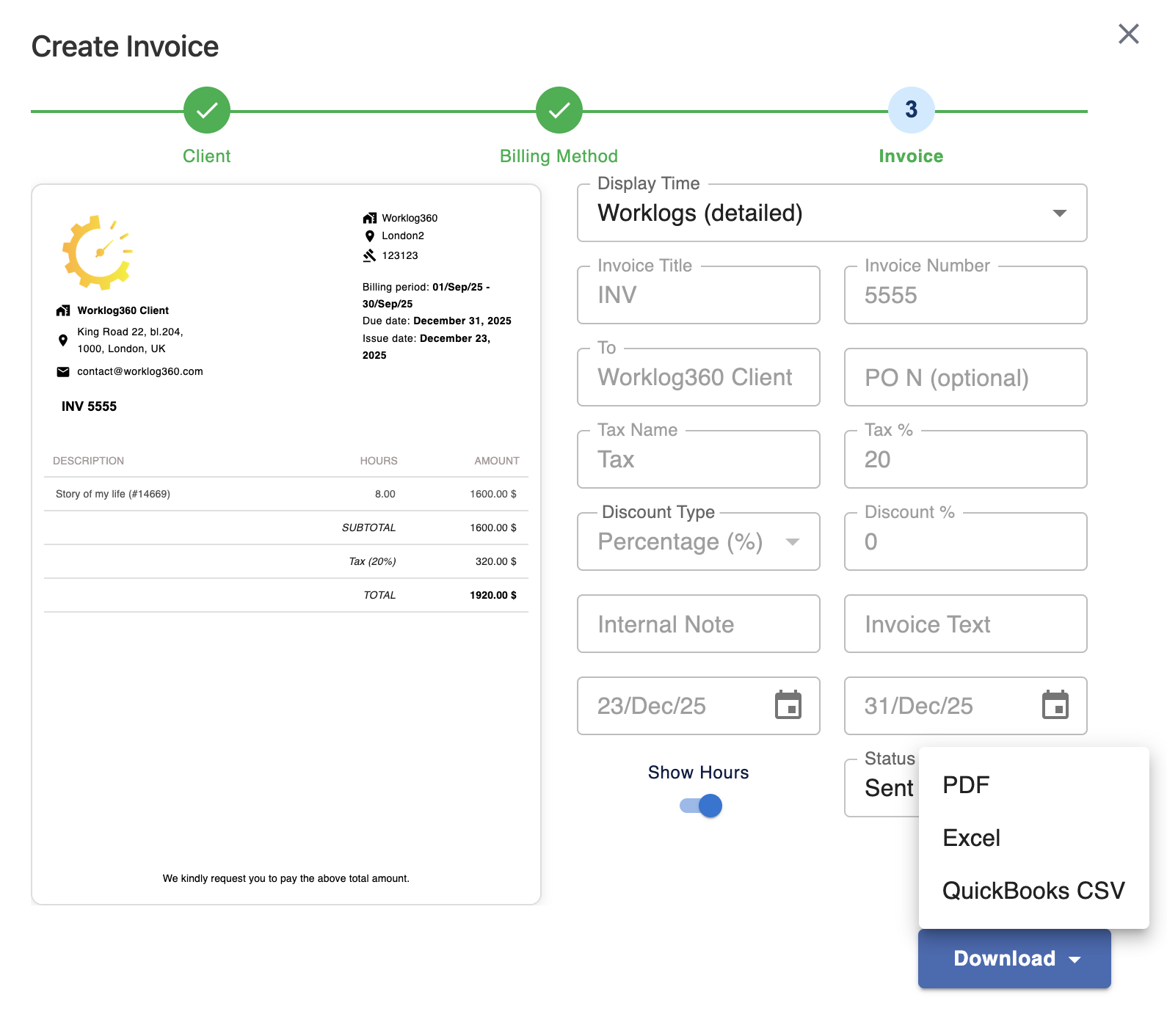
Worklog360 currently supports exporting finalized invoices in the following formats:
Export as Excel
Use this option when you need:
-
Further customization
-
Internal review
-
Sharing invoice data with finance or operations teams
Includes:
-
Invoice header fields
-
Line items
-
Hours, rates, and amounts
-
Tax information (if applicable)
Export as PDF
Use this option to:
-
Send invoices directly to clients
-
Store signed or sent invoices
Includes:
-
Clean, client-ready invoice layout
-
Company and client details
-
Line items and totals
Export as QuickBooks CSV
Use this option to:
-
Import invoices into QuickBooks manually
The CSV format matches QuickBooks import requirements and includes:
-
Customer name
-
Invoice number and dates
-
Line items (hours, rates, amounts)
-
Tax fields (if applicable)
📌 This is ideal for teams that want to keep QuickBooks as their accounting system while managing billing inside Jira.
How to export an invoice
-
Go to Worklog360 → Financials → Invoices
-
Open a finalized invoice
-
Click Export
-
Choose the desired format:
-
Excel
-
PDF
-
QuickBooks CSV
-
Tracking exported invoices
After export:
-
The invoice remains marked as Finalized
-
Worklogs stay marked as Invoiced
-
You can re-export the same invoice if needed
📌 Exporting does not change invoice or worklog status.
QuickBooks sync (coming soon)
Worklog360 will introduce automated QuickBooks sync in Q1 2026.
Planned capabilities include:
-
One-click invoice sync to QuickBooks
-
Automatic customer matching
-
Reduced manual imports
Until then, the QuickBooks CSV export provides a reliable manual workflow.
Best practices for finance teams
💡 Finalize invoices only after review — exports reflect finalized data.
💡 Use PDF for clients, CSV for accounting.
💡 Keep invoice numbers consistent across systems for easy reconciliation.