
This guide explains how to identify missing or late worklogs in Worklog360 before they impact reporting, approvals, or billing.
Catching these gaps early helps ensure:
-
Accurate reports
-
Complete timesheets
-
Defensible invoices
Why missing or late worklogs matter
When time is logged late or not logged at all:
-
Reports do not reflect reality
-
Timesheets become unreliable
-
Billable work may never be invoiced
Worklog360 gives you multiple ways to spot these issues early.
Step 1: Open Reports
Go to Worklog360 → Reports.
You will use two main views:
-
Timesheets
-
Time (Summary)
Method 1: Use Timesheets to spot missing time (recommended)
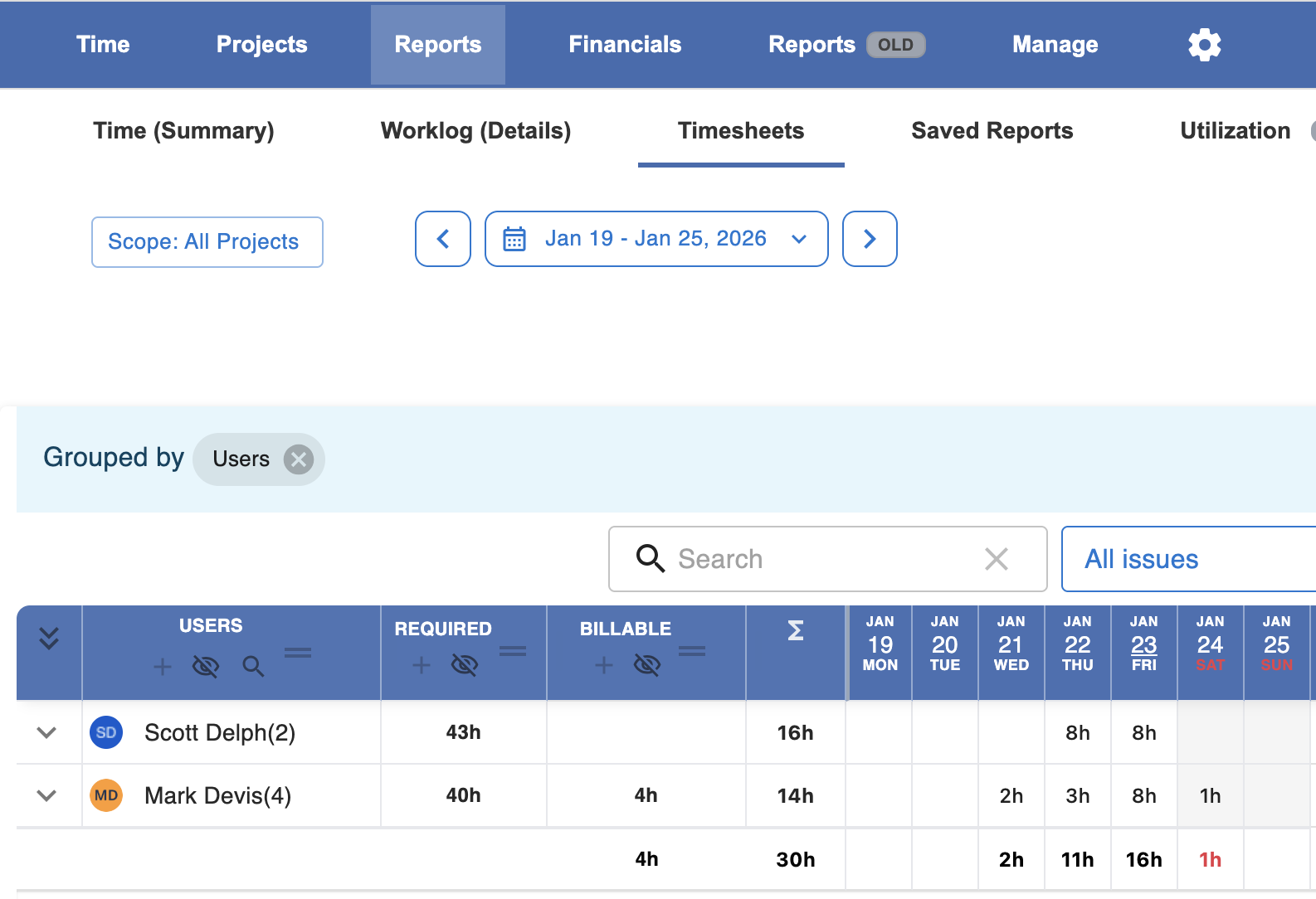
The Timesheets view is the fastest way to identify missing or late worklogs.
How to do it
-
Open Reports → Timesheets
-
Group by User
-
Select the relevant time range (day, week, or month)
-
Apply the desired scope (project, filter, or all)
What to look for
When grouped by user, you can clearly see:
-
Required hours
-
Logged hours
-
Billable hours
📌 Missing or late worklogs usually appear as:
-
Logged hours below required hours
-
Large gaps earlier in the week
-
Sudden spikes at the end of a period
Method 2: Use Time (Summary) to detect anomalies
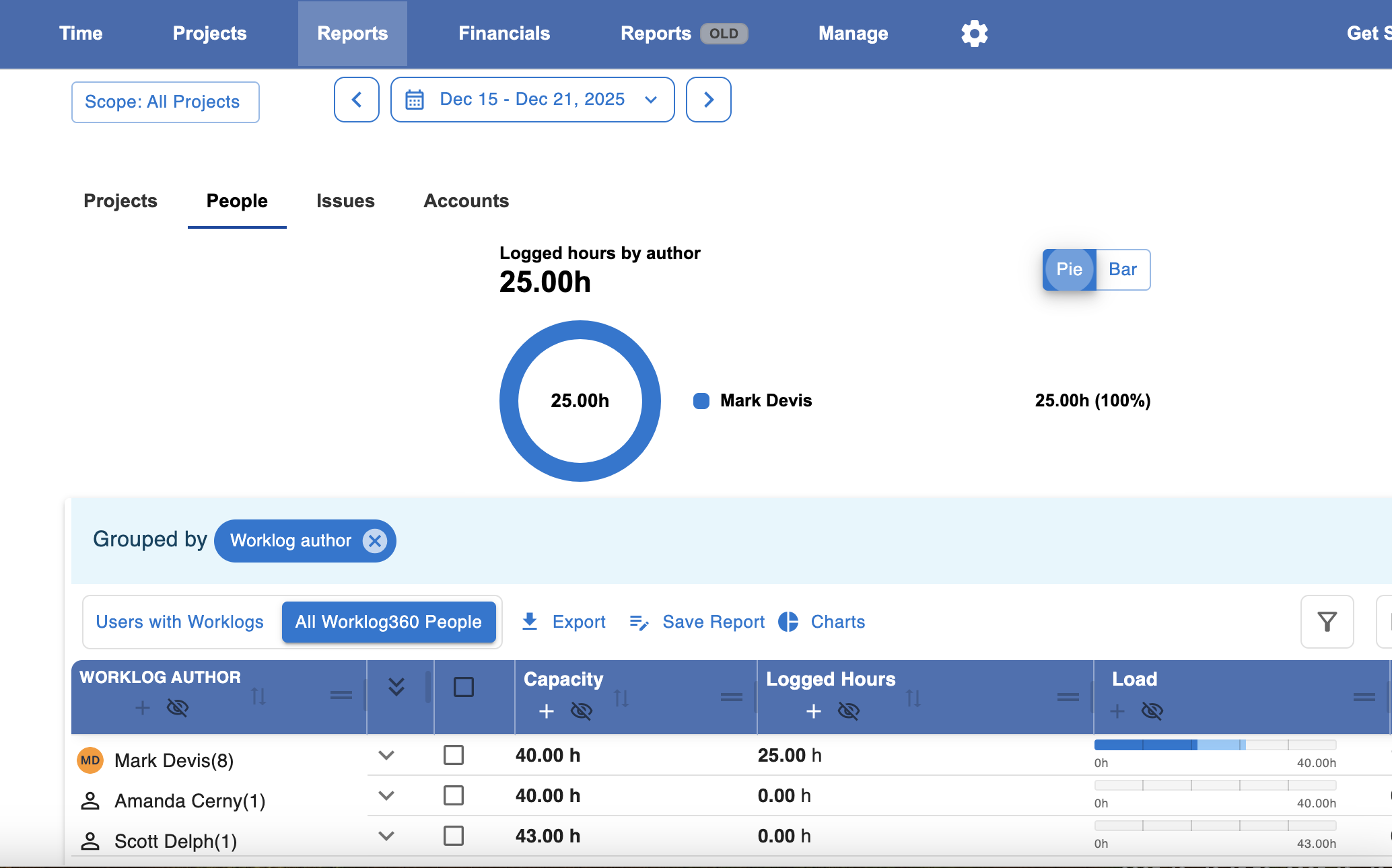
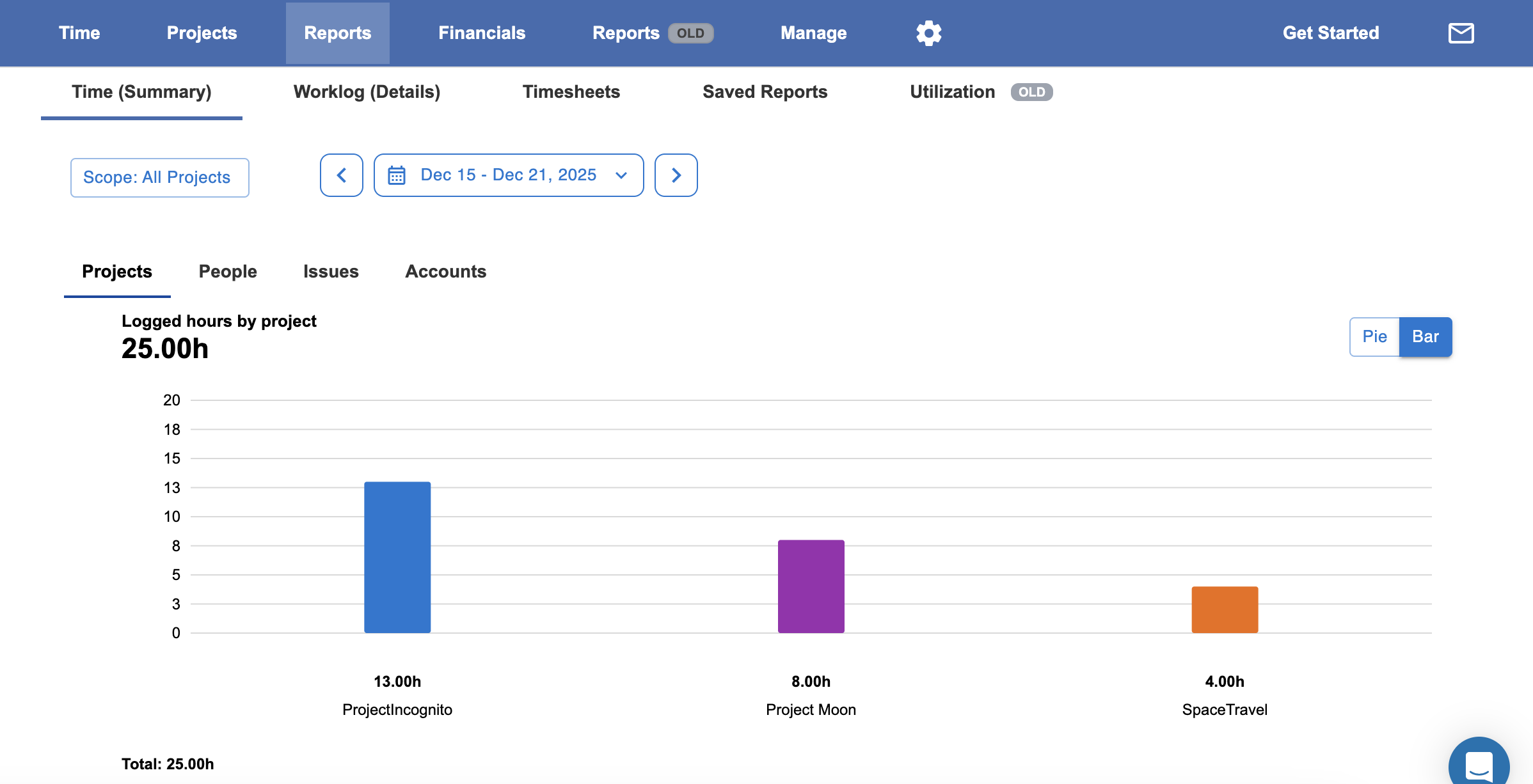
Use Time (Summary) to detect patterns that may indicate missing worklogs.
How to do it
-
Open Reports → Time (Summary)
-
Group by User or Project
-
Review totals for the selected period (check the charts)
What to look for
-
Users with unexpectedly low logged time
-
Projects with less time than expected or vs others
-
Uneven distribution of time across the period
📌 This view helps answer:
“Does this look right at a high level?”
Method 3: Drill down with Worklogs (Details)
When something looks off, use Worklogs (Details) to inspect exactly what was logged.
How to do it
-
Open Reports → Worklogs (Details)
-
Apply the same time range and scope
-
Filter by User, Date, or any Jira or custom worklog field
What this view gives you
-
Full visibility into individual worklogs
-
Ability to verify dates, duration, and details
-
Confidence before following up with a team member
Best practice for managers
💡 Review Timesheets mid-week, not just at the end of the period.
This reduces last-minute logging and improves accuracy.
💡 Use Time (Summary) to spot trends, then Worklogs (Details) to confirm specifics.
💡 Address missing time early — it’s easier to fix before approvals or invoicing.