
This guide explains how to review budget consumption in Worklog360 — so you can track used vs remaining budget based on logged billable time and rates.
Regular budget reviews help you:
-
Stay in control of delivery
-
Detect overruns early
-
Avoid surprises at invoicing time
What “budget consumption” means in Worklog360
Budget consumption is calculated from:
-
Billable worklogs
-
Applied billable rates
-
Budget time range
-
Budget configuration (money or hours)
Only billable hours contribute to budget burn.
Non-billable work is tracked, but does not consume the budget.
Step 1: Open the Budgets overview
-
Go to Worklog360 → Financials → Budgets
-
Review the budgets list
What you see at a glance
For each budget, the overview shows:
-
Budgeted amount or hours
-
Consumed amount
-
Remaining amount
-
Visual indication of progress
📌 This is the fastest way to understand overall budget health.

Step 2: Open a specific budget
Click on the budget you want to review.
Key information in the budget view
Inside the budget, you can see:
-
Total logged time
-
Total billable time
-
Total consumed amount
-
Remaining budget
-
Budget period
All values update automatically as new worklogs are added.
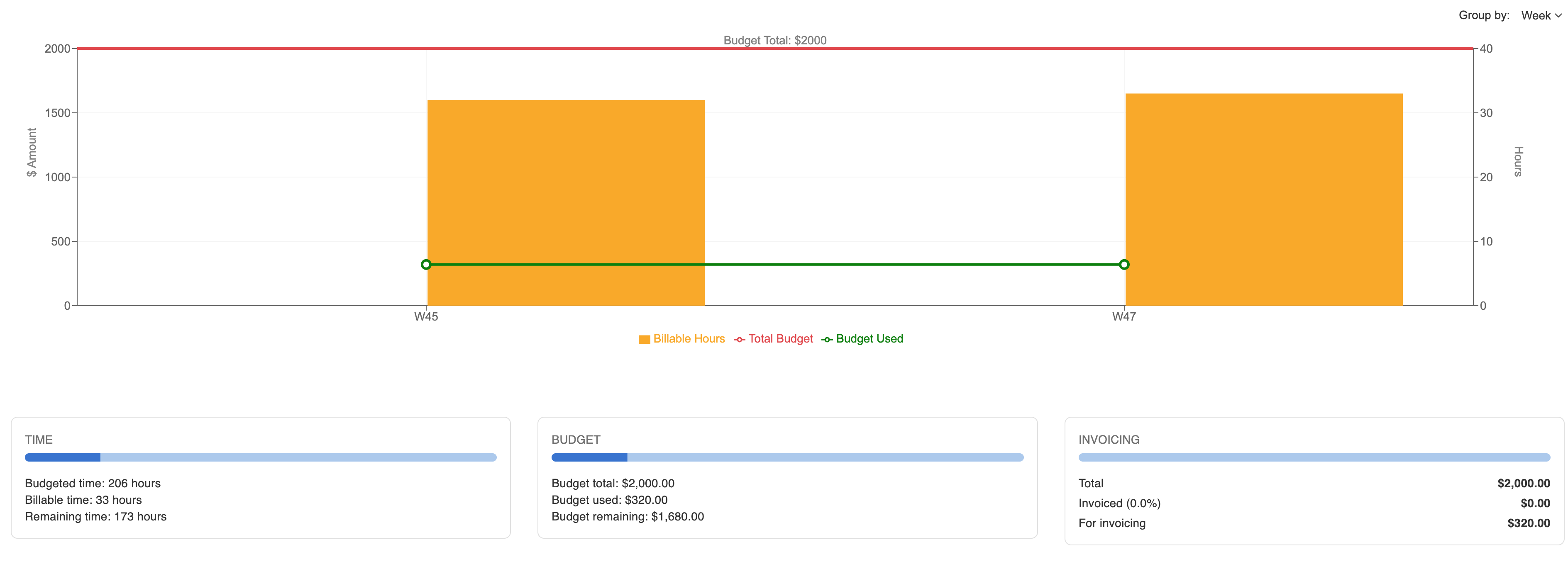
Step 3: Review consumption over time (burn-up chart)
Each budget includes a burn-up chart.
What the chart shows
-
Budget consumption over time
-
How fast the budget is being used
-
Whether burn is steady or accelerating
📌 Use the chart to answer:
“Are we burning this budget faster than expected?”
A steep curve early in the period often signals risk.
Step 4: Understand what is driving consumption
From the budget view, you can analyze:
-
Which users are consuming the most budget
-
Which issues or work types contribute most
-
How billable vs non-billable time compares
If needed, drill down into:
-
Reports → Worklogs (Details)
Filter by:-
Budget
-
Project
-
Date range
-
Billable = Yes
-
This gives full transparency into which worklogs are consuming the budget.
Step 5: Ensure consumption data is accurate
To ensure numbers are correct:
-
Click the Calc button on the budget
This:
-
Reassigns eligible worklogs
-
Recalculates billable amounts
-
Updates consumed and remaining values
📌 Especially important after:
-
Importing worklogs
-
Adjusting billable hours
-
Updating rates
Common scenarios to watch
Rapid consumption
-
High rates applied to senior roles
-
Large volumes of billable work early in the period
Low consumption
-
Work logged as non-billable
-
Missing or late worklogs
-
Budget not fully aligned with project scope
Best practices for managers
💡 Review budget consumption weekly, not monthly.
💡 Combine totals with the burn-up chart — both matter.
💡 Investigate anomalies early, before approvals or invoicing.