
How to detect budget risk early
[For Managers]
This guide explains how to identify projects that are burning budget faster than expected using Worklog360 Budgets — before it impacts delivery, margins, or invoicing.
Why budget risk happens
Budget risk usually appears when:
-
Time is logged faster than planned
-
Too much work is marked as billable
-
Rates are higher than expected
-
Non-billable work quietly accumulates
-
Worklogs are missing or assigned incorrectly
Worklog360 Budgets are designed to surface these risks early.
How budgets work in Worklog360 (quick refresher)
Budgets are the foundation of financial tracking in Worklog360.
A budget:
-
Is linked to a specific Jira project
-
Covers a defined time period
-
Acts as a container for worklogs
-
Tracks:
-
Logged time
-
Billable time
-
Rates
-
Dollar amounts
-
Once a budget is created:
-
Every new worklog logged within the budget’s date range
→ is automatically assigned to that budget -
Dollar amounts are calculated only for billable hours
Step 1: Open the Budgets overview
-
Go to Worklog360 → Financials → Budgets
-
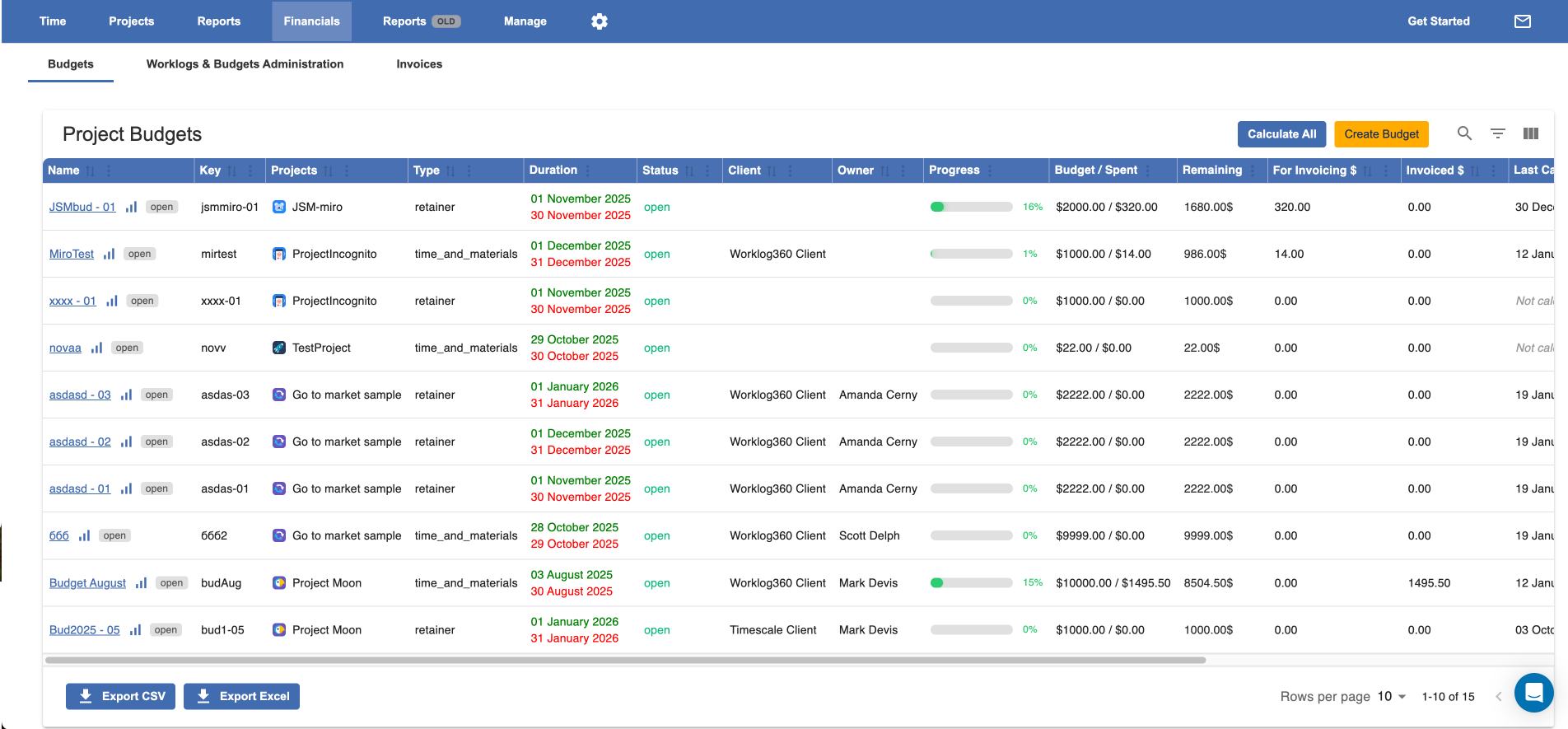
Review the list of budgets
What you see at a glance
For each budget, you can immediately see:
-
Budgeted amount or hours
-
Consumed amount
-
Remaining amount
-
Burn progress
📌 This view already highlights early warning signs.
Step 2: Identify early warning signals
Look for budgets where:
-
Consumption is high early in the period
-
Remaining budget is dropping faster than expected
-
Actual burn does not match delivery progress
Typical red flags:
-
50% of budget consumed halfway through week one
-
Retainer budgets burning unevenly across periods
-
Internal effort eating into client budgets
Step 3: Open the budget details
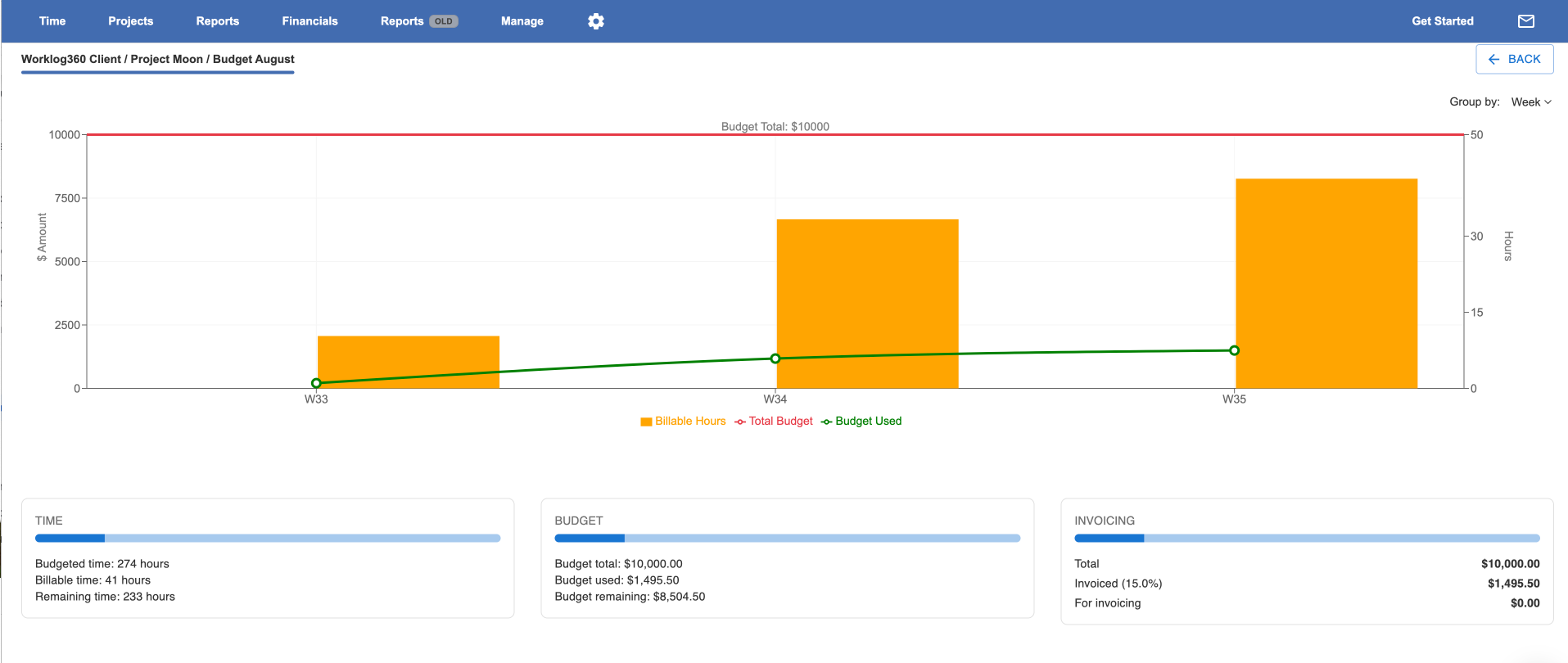
Click on a budget to see detailed insights.
What you’ll see
-
Total logged time
-
Billable vs non-billable split
-
Total billed amount
-
Remaining budget
Burn-up chart
The burn-up chart shows:
-
How the budget is consumed over time
-
Whether spending is linear or accelerating
📌 A steep curve early in the period usually indicates budget risk.
Step 4: Understand what is driving the burn
From the budget view, drill down into:
-
Which users are logging time
-
Which issues or work types consume most effort
-
How much time is billable vs non-billable
If something looks off, switch to:
-
Reports → Worklogs (Details)
Filter by:-
Budget
-
Project
-
Date range
-
Billable status
-
This allows you to see exactly which worklogs are driving the burn.
Step 5: Ensure budget data is accurate
Budget risk analysis only works if data is complete.
Important checks
-
Click the Calc button on the budget to:
-
Recalculate amounts
-
Ensure all eligible worklogs are assigned
-
Detect unassigned or out-of-range worklogs
-
📌 Worklogs can only be assigned to a budget if:
-
Their date falls within the budget’s time range
-
They belong to the same Jira project
Handling worklogs created outside the budget flow
If worklogs were:
-
Created before the budget existed
-
Imported
-
Logged via another app
Go to Worklogs & Budget Administration, where you can:
-
Mark worklogs as billable
-
Update rates and amounts
-
Assign them to the correct budget (if eligible)
This ensures budget calculations reflect reality.
Best practices for early risk detection
💡 Review budgets weekly, not just at month-end.
💡 Watch the burn-up chart, not just totals.
💡 Investigate sudden spikes immediately — they rarely fix themselves.
💡 Detecting risk early gives you options: re-scope, re-price, or re-prioritize.
What to do when you detect budget risk
Once a risk is identified, you can:
-
Adjust scope or priorities
-
Correct billable hours if needed
-
Inform stakeholders early
-
Prepare accurate, defensible invoices