
Overview
The QuickBooks integration in Worklog360 allows you to:
-
Connect your QuickBooks account
-
Link Worklog360 clients to QuickBooks customers
-
Sync finalized invoices directly to QuickBooks
-
Track invoice status and payments inside Worklog360
This enables a fully connected billing workflow — from Jira worklogs → invoice → accounting.
1. Connect Your QuickBooks Account
Where to go
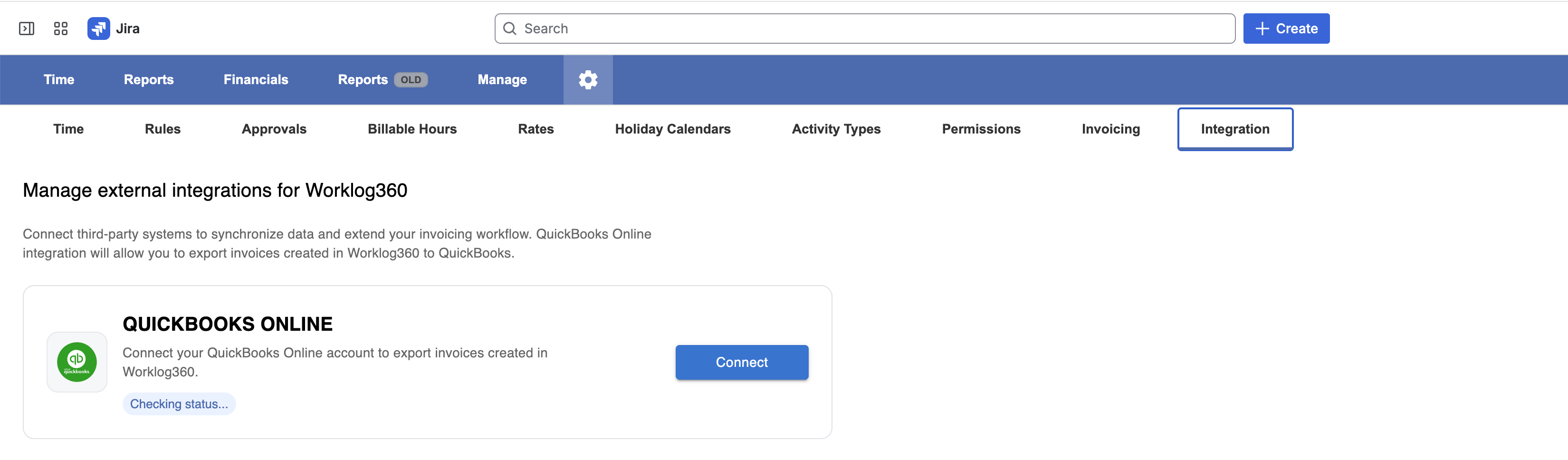
Settings → Integrations → QuickBooks
Steps
-
Navigate to Settings
-
Open Integrations
-
Click Connect to QuickBooks
-
Authenticate with your QuickBooks account
-
Grant required permissions
Result
Once connected:
-
Your QuickBooks account is securely linked
-
Worklog360 can fetch customers and push invoices
-
!!!! THIS CONNECTION ONLY LAST 100 DAYs after this you would need to reconnect
2. Link Clients to QuickBooks Customers
Before syncing invoices, you must map your clients.
Where to go
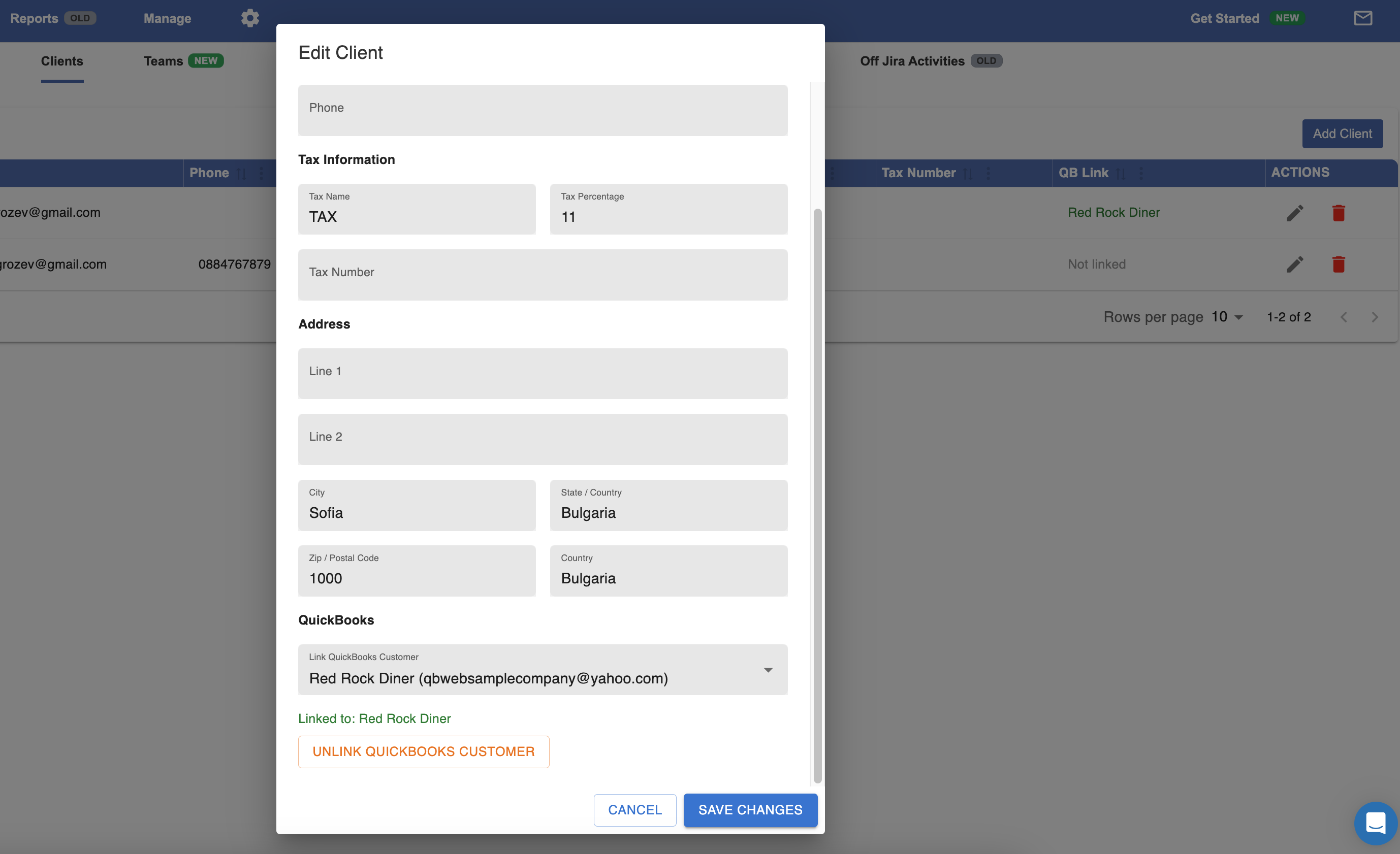
Manage → Clients
Steps
-
Open Manage → Clients
-
Edit a client and scroll to Quickbooks
-
Link to QuickBooks Customer
-
Choose an existing QuickBooks customer from the dropdown
-
Save
Important Notes
-
Only linked clients can have invoices synced
-
One Worklog360 client = one QuickBooks customer
-
This ensures invoices are created under the correct customer in QuickBooks
3. Finalize an Invoice
Only finalized invoices can be synced.
Steps
-
Create an invoice from a budget
-
Review:
-
Line items
-
Hours
-
Rates
-
Amounts
-
-
Click Finalize Invoice
What Finalization Does
-
Locks the invoice data
-
Prepares it for export/sync
-
Ensures billing accuracy
4. Sync Invoice to QuickBooks
Where to go
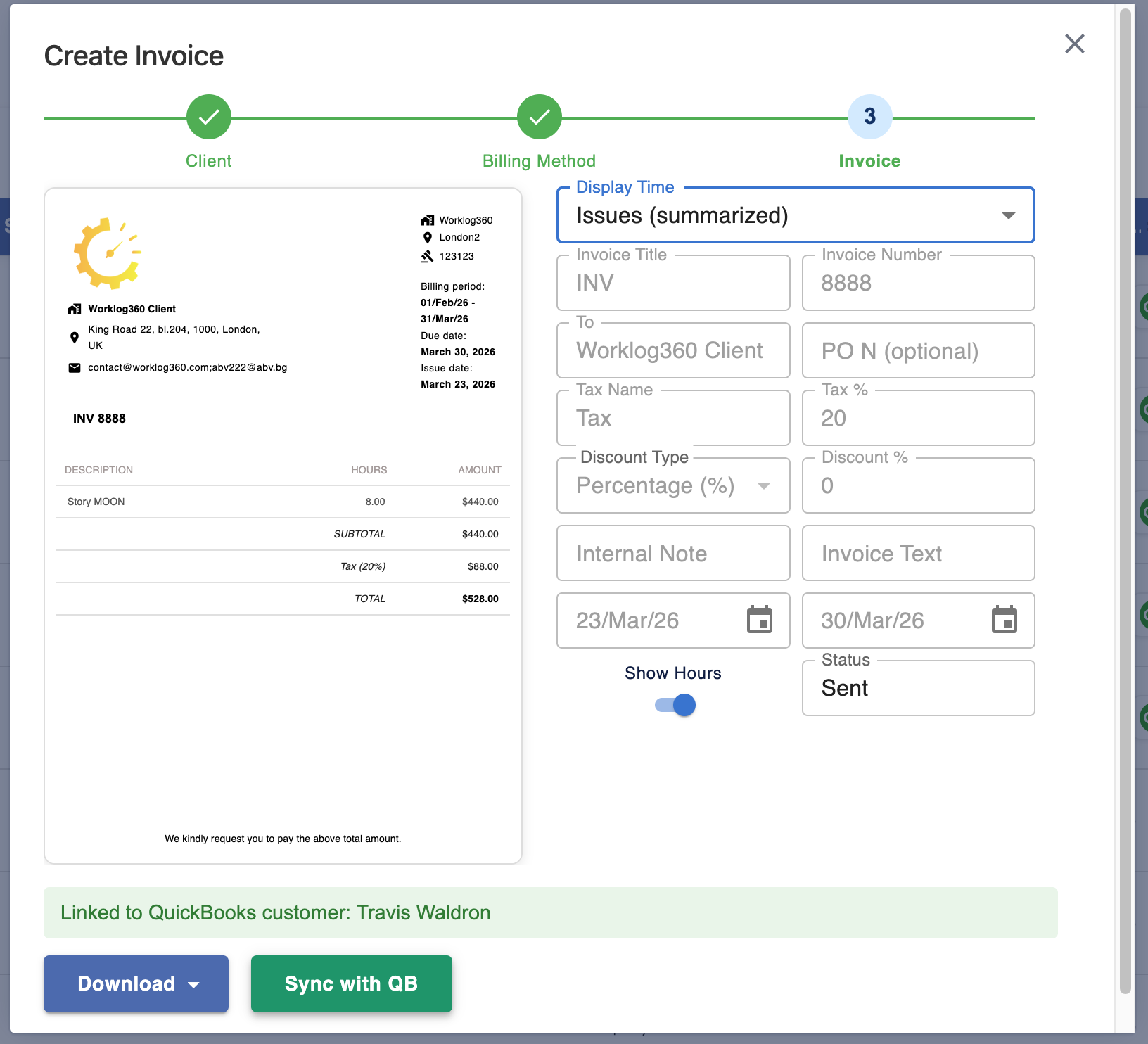
Financials/Invoices → Open finalized/sent invoice
Steps
-
Open a finalized invoice
-
Click Sync with QB
-
Wait for confirmation
What Gets Synced
-
Customer (linked QuickBooks customer)
-
Invoice number
-
Line items
-
Hours (Qty)
-
Rates
-
Amounts
5. Track Invoice Status & Payments
Once synced, Worklog360 keeps visibility of QuickBooks data.
Where to go
Financials/Invoices → Worklog360
What You Can See
-
QuickBooks Invoice Status (e.g. Draft, Sent, Paid)
-
Paid amount
-
Remaining balance

Why This Matters
-
No need to switch between tools
-
Finance + delivery teams stay aligned
-
Real-time visibility on cash flow
6. Typical Workflow (End-to-End)
-
Track time in Jira (via Worklog360)
-
Assign worklogs to budgets
-
Generate invoice
-
Finalize invoice
-
Sync to QuickBooks
-
Track payment status in Worklog360
Best Practices
-
✅ Always link clients before invoicing
-
✅ Review invoice before finalizing
-
✅ Use consistent naming between systems
-
✅ Sync only finalized invoices
Troubleshooting
Invoice not syncing?
-
Check if client is linked to QuickBooks
-
Reconnect QuickBooks if needed
Missing customer?
-
Confirm customer exists in QuickBooks
-
Refresh connection
Summary
The QuickBooks integration transforms Worklog360 into a complete billing workflow:
-
Accurate invoices from Jira worklogs
-
One-click sync to accounting
-
Real-time payment tracking